

Want to make your training sessions reusable and accessible anytime? Zoho ShowTime lets you record live training sessions and replay them for future use. Here’s what you can do with it:
- Record Everything: Capture presentations, Q&As, screen sharing, and more with a single click.
- Replay Anytime: Share recordings with teams across time zones or for those who missed the live session.
- Manage Roles Easily: Assign roles like Trainer, Admin, or Member to control access and permissions.
- Boost Engagement: Use tools like interactive whiteboards, screen sharing, and Q&A during live sessions.
- Save Time and Costs: Reduce repetitive training by reusing recordings for onboarding, compliance, or skill development.
Quick Overview:
- How It Works: Start recording during live sessions and save them in MP4 format.
- Sharing Options: Share recordings securely via email or download them for offline use.
- Analytics: Track viewer engagement and refine future sessions based on feedback.
Zoho ShowTime simplifies training, making it flexible, consistent, and cost-effective. Whether you’re onboarding new hires or sharing updates, recorded sessions ensure everyone stays on the same page.
Setting Up Your Live Training Session
Preparing for a training session that’s ready to record means getting roles assigned, technology configured, and content organized. The work you do beforehand directly affects how useful the recording will be for future viewers. Start by assigning roles, then move on to the technical and content setup.
User Permissions and Role Setup
Zoho ShowTime uses a role-based system to manage who can record sessions and access advanced features. Before your first training session, it’s essential to understand these roles.
Here’s a quick breakdown:
- Super Admin: Has full control over the account.
- Admin: Manages sessions and adds users.
- Trainer: Can record sessions and access analytics.
- Member: Limited to conducting sessions.
- Additional roles, like Co-trainers and Guest Trainers, can also be assigned to enhance sessions.
Each subscription includes two Trainer Licenses. If you need more, you’ll have to purchase them. Any users beyond the included licenses will default to Member roles, based on their session history and join date.
The Super Admin should assign these roles before the first session. Roles can be updated anytime through the Admin Console, giving you flexibility as your training needs evolve.
Session Configuration and Equipment Setup
Technical preparation is crucial for delivering a professional recording. Start by testing your equipment well in advance to ensure everything works smoothly and avoids issues like audio feedback.
For the best results:
- Audio and Video: Place the microphone to minimize background noise and position the camera to capture clear visuals, including facial expressions. Use quality headphones to ensure clear sound.
- Lighting: Ensure your space is well-lit, avoiding harsh shadows or backlighting from windows or screens. Proper lighting makes your recording look polished and professional.
- Background: Keep your background clean and free from distractions. A simple, professional backdrop helps viewers focus on your content.
When scheduling your session in ShowTime, adjust participant settings to match the level of interaction you want during the live session. Once your technical setup is ready, shift your focus to crafting content that works well for replay.
Content Planning for Replay Use
Designing training content for replay requires a slightly different approach than live-only sessions. Your goal is to keep on-demand viewers engaged while still catering to live participants.
Start by organizing your material in a logical flow. Build from basic ideas to more advanced topics, helping learners grasp concepts without feeling overwhelmed. For example, in a leadership training session, you could begin with foundational topics like effective communication before moving on to detailed areas like budgeting or performance reviews.
Here’s how to make your content more replay-friendly:
- Prioritize Key Topics: Cover the most critical content early in the session. Use job or task analysis to identify the skills and knowledge your audience needs most.
- Set Clear Objectives: Define learning goals for each segment to guide live participants and give replay viewers a clear roadmap of what to expect.
- Break It Down: Divide your session into smaller, digestible sections. Consistent formatting helps viewers navigate the material when watching later.
Incorporate a mix of content types to keep things engaging. For instance, upload PDFs with training materials or use real-world examples – like addressing common customer complaints and demonstrating resolution steps – to make the session more relatable.
Since replay viewers may pause or adjust playback speed, include clear transitions between topics and summarize key points regularly. This ensures your content remains effective, whether watched live or on-demand.
Finally, review feedback from early recorded sessions to fine-tune your content. This process helps you refine your structure, ensuring both live and replay audiences get a valuable experience.
How to Record Live Training Sessions
When you’re hosting a live training session, capturing the content is key to creating lasting resources. Zoho ShowTime offers tools to make recording seamless and effective.
Starting and Controlling Recordings
In your trainer interface, you’ll find a "Start Recording" button. Simply click it to begin capturing your session. You can pause and resume the recording whenever needed, and each segment will be saved separately. For instance, if your training includes multiple segments, you might record the initial presentation, pause during a break, and then resume for the next part.
If you lose connection, you can reload within one minute to continue the recording. If the session disconnects for longer, the recording will stop automatically, but you can start a new segment once you’re reconnected. All recordings are securely saved in your ShowTime account for easy access later.
Using Interactive Tools While Recording
ShowTime includes several interactive features to enhance your training sessions, and many of these are captured in your recordings. These tools include screen sharing, an interactive whiteboard, Q&A, and open mic features. However, keep in mind that while these elements are recorded, polls are not included – only audio, video, screen sharing, and presentations are saved.
- Screen Sharing: Perfect for software demos or document walkthroughs, ensuring everything you display is recorded.
- Interactive Whiteboard: A great way to visually explain concepts by drawing, writing, or adding shapes in real time.
- Q&A Sessions: Captures the exchange of questions and answers, enriching the recorded content.
- Open Mic: Lets attendees contribute their insights, making the session more dynamic.
These tools not only improve engagement during the session but also add depth to the recorded material.
Recording Best Practices
To ensure a smooth recording experience, revisit your technical setup in advance. If you’re using a Mac, check that microphone and camera permissions are enabled in System Preferences > Security & Privacy.
Make sure you have a reliable internet connection with enough bandwidth to support your session. If needed, adjust the video bitrate in ShowTime’s settings to align with your connection speed. Always test your setup – including audio, video, and screen sharing – before going live. This helps avoid technical hiccups that could disrupt your recording.
With these tips, you’re well-prepared to record, manage, and share your training sessions effortlessly.
Managing and Sharing Recorded Sessions
Once your session wraps up, it’s time to organize and share your recordings to maximize the impact of your training. Zoho ShowTime offers a range of tools to help you manage, distribute, and track your session recordings efficiently.
Finding and Organizing Your Recordings
Every session you record is automatically saved in a centralized location within Zoho ShowTime. To access your recordings, head over to the "Recordings" tab on the left-hand side of your dashboard. Here, you’ll find the Recordings Library, where all your sessions are stored in MP4 format, making them easy to access and share across platforms.
Whether you’re looking to revisit a specific part of a session or need to share an entire recording, everything you need is housed in one convenient spot.
Sharing Recordings and Setting Access Controls
Sharing your training sessions is simple with ShowTime’s built-in sharing features. From the Session Details page of any completed session, you can choose to play, download, or delete a recording, depending on your requirements.
To share a recording with specific individuals, click the "share" icon in the Recordings tab and input the recipient’s email address. This ensures that only the intended audience has access, keeping your training content secure while enabling easy distribution.
Need to send recordings to a broader audience? Use the download option to share MP4 files effortlessly across various platforms and devices. For organizations running multiple training programs, this tailored sharing system ensures that each team or department receives only the materials relevant to their roles. Plus, after sharing, you can track how your recordings are received using built-in analytics.
Using Replay Analytics
Zoho ShowTime’s Analytics feature gives you a detailed look at how your recorded sessions perform. As soon as your session ends, you can dive into the data to evaluate its impact and viewer engagement.
The system provides talk statistics and visualizations that help you uncover patterns and compare different aspects of your sessions. This allows you to identify which parts of your training resonate most with your audience and which areas could use some fine-tuning.
"In God we trust, all others must bring data" – W. Edwards Deming, Statistician & Manufacturing Guru
This quote highlights the importance of relying on data to make informed decisions. Considering that U.S. companies spent a staggering $70 billion on employee training in 2016, having tools to measure and improve training effectiveness is more important than ever.
With analytics, you can track viewer engagement, pinpoint where viewers lose interest, and determine which topics spark the most curiosity. These insights are invaluable for refining your future sessions, ensuring your recorded content continues to provide meaningful value to your audience.
sbb-itb-058cafb
Training Recording Benefits and Use Cases
Once you’ve mastered session setup and recording techniques, it’s essential to understand how recorded training sessions can maximize your return on investment (ROI). Using Zoho ShowTime to record training sessions transforms the learning process by making content accessible for repeated use.
Benefits of Recorded Training Sessions
Learn at Your Own Speed
One of the biggest perks of recorded training is the flexibility it offers. Meshach Abhishek J from Zoho puts it best:
"Recorded sessions allow your viewers to learn at their own pace, focus on specific portions of the session, and revisit segments they might have missed during the live training."
This means employees can pause to jot down notes, replay tricky sections, or skip to the parts that matter most to their role.
Save on Training Costs
For budget-conscious businesses, recorded sessions are a smart choice. Online training often requires 40–60% less employee time compared to in-person sessions, eliminating expenses like venue rentals, travel, and time away from work. A single recording can train hundreds of employees across locations without added costs.
Continuous Trainer Improvement
Recording sessions allows trainers to review their performance, pinpoint areas for improvement, and fine-tune their delivery. This ongoing review process helps trainers deliver better content each time.
Boost Credibility and Expand Reach
Sharing recorded training sessions on your company website or professional platforms can position your organization as an industry leader. High-quality recordings showcase expertise and can attract new business opportunities.
Consistent Training Every Time
Recorded sessions ensure a uniform message, free from the variability or interruptions that might occur in live settings.
Practical Uses for Small and Medium Businesses
For small and medium-sized companies, recorded training is a game-changer. It’s particularly effective for:
- Onboarding programs that ensure new hires get a comprehensive introduction to the company.
- Compliance training that provides regulation-aligned content with documentation for audits.
- Cross-training initiatives, helping employees pick up skills outside their primary roles.
- Skills development programs that use microlearning – short, focused lessons – allowing employees to learn during downtime or as part of their daily routine.
Live vs. Recorded Training: Key Differences
Knowing when to choose live or recorded training can help you design more effective programs. Each format has its strengths:
| Feature | Live Training | Recorded Training |
|---|---|---|
| Interaction | High – real-time Q&A and discussions | Low |
| Flexibility | Low – fixed time slots | High – available anytime |
| Cost | Higher – trainer time for each session | Lower – one-time production cost |
| Learning Pace | Fixed – follows trainer’s speed | Self-paced – learners control timing |
| Content Consistency | Variable – may differ per session | High – identical every time |
| Engagement Potential | High (with a skilled trainer) | Can be lower |
| Best Use Cases | Skills practice, team interaction | Reference material, flexible learning |
Live training works best when interaction and community engagement are key. As training expert Nicola Askham explains:
"If you’re looking for interaction and you like learning amongst others, live online sessions are fantastic."
It’s ideal for teaching complex skills that need immediate feedback.
Recorded training, on the other hand, is perfect for delivering content that learners can access on their own schedule. Nicola Askham also notes:
"If you prefer flexibility and want to go through the content on your own schedule, the pre-recorded sessions are ideal."
This format is especially useful for sharing policy updates, product details, or creating a lasting reference library.
By mid-2020, 68% of organizations had adopted e-learning as a practical alternative to in-person training, with 82% planning to expand their digital learning content. Many businesses now use a blended approach – combining live sessions with recorded modules – to meet diverse learning needs and improve training outcomes.
Check out how AorBorC Technologies can help you optimize your training programs with expert advice.
Key Points for Zoho ShowTime Recording Success
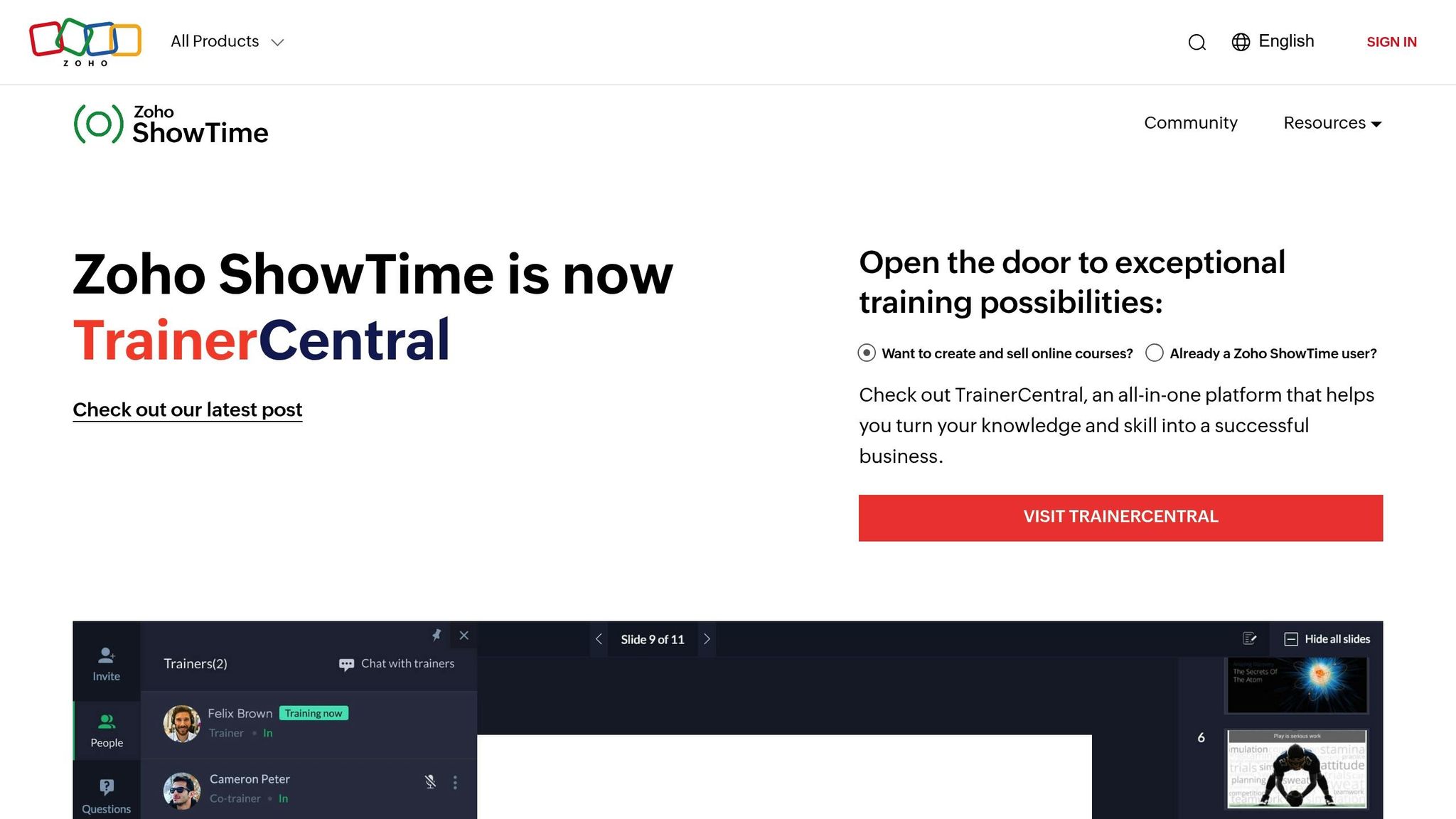
Make the most of your training sessions by following a few practical tips for recording in Zoho ShowTime.
Master the Recording Basics
Getting started with recording is simple. First, schedule your session, then click "Start Broadcast" followed by "Start Recording." Zoho ShowTime lets you start and stop recording multiple times during a session, creating separate video files for each segment. This feature is handy for pausing during breaks or skipping parts that don’t need to be included in the replay.
Once you’ve got the basics down, focus on creating content that leaves a lasting impression.
Optimize Content for Maximum Impact
Did you know that people retain 95% of a message when it’s delivered via video, compared to just 10% when reading text? Plus, visuals can cut down comprehension time by 40% and improve retention by 38%. With stats like these, it’s clear that incorporating visuals like infographics, process flows, or short videos can make complex ideas easier to understand.
Interactive elements are equally important. Adding scenario-based decision points or knowledge check quizzes can double retention rates compared to passive content. Even in recorded sessions, these strategies can keep your audience engaged.
Secure Your Training Content
Protecting your training materials is crucial. Set up a unique passcode for each session and share it directly with registered participants. Simply sending out session links isn’t enough to safeguard your content. Zoho ShowTime also prioritizes data privacy, ensuring that user information isn’t shared with third-party platforms for commercial use.
Since recordings are stored until you delete them, it’s a good idea to establish a retention policy for your organization. This ensures your materials remain secure over time.
Plan Content Strategically
To make your sessions replay-friendly, use a mix of content formats like PDFs, videos, and audio. Transform key concepts into short videos or downloadable guides to create multi-modal learning experiences. This approach can boost completion rates by 55% compared to using a single format.
Featuring internal experts in your recordings can also enhance authenticity and engagement. When knowledgeable and enthusiastic team members appear on camera, they bring your brand’s personality to life, making the training feel more relatable. Don’t forget to track viewer engagement to identify areas for improvement and fine-tune your future sessions.
Track and Improve Performance
Keep an eye on viewer engagement to see where attention drops off. Use this feedback to adjust your content and improve delivery in future recordings. Adding captions and transcripts is another smart move – it boosts accessibility, ensuring everyone can follow along, no matter their learning style.
For tailored support with Zoho platform optimization and training program development, check out AorBorC Technologies. They specialize in helping organizations elevate their training strategies.
FAQs
How does Zoho ShowTime’s role-based system help secure and manage training sessions effectively?
Zoho ShowTime uses a role-based system to boost security and simplify the management of training sessions. By assigning specific permissions to users based on their roles, it ensures that only the right individuals can access, manage, or view sessions, minimizing the chances of unauthorized access.
With this setup, you can assign roles like trainers, co-trainers, or participants, tailoring the level of access and control for each. This approach not only strengthens security but also keeps your training sessions structured and running smoothly.
What are the best practices for creating training content that is engaging and effective for replays?
To craft training content that stays engaging and effective for replays, start by setting clear objectives and tailoring the material to meet your audience’s specific needs. Focus on concise, targeted learning goals to hold their attention throughout.
Add interactive elements like quizzes or prompts to keep learners actively involved and help them retain what they’ve learned. Visual aids such as charts or infographics are great for breaking down complex ideas into digestible pieces. Taking the time to script your content and use storyboards during production can also enhance clarity and give your material a polished, professional feel.
These steps can help you design training sessions that are not only replay-friendly but also genuinely engaging for your audience.
How can Zoho ShowTime’s analytics feature enhance my training sessions?
Zoho ShowTime’s analytics feature offers a deep dive into your training sessions, giving you the tools to refine and enhance them. By examining attendee engagement, session impact, and trainer performance, it highlights areas where you can improve and fine-tune your approach for future sessions.
It also provides insights into learner participation and retention, helping you craft training programs that are more targeted and engaging. This way, your sessions go beyond just delivering information – they become highly effective in achieving your training goals.