
Your Zoho mobile app can do more than just work – it can work for you. By customizing Zoho’s mobile app UI, you can create a tool that aligns with your team’s workflows, improves productivity, and reflects your brand identity. Whether you’re managing sales, projects, or customer service, tailored interfaces make tasks simpler and faster.
Key Takeaways:
- Customization Tools: Zoho Creator offers drag-and-drop builders, pre-built widgets, and conditional logic for easy UI adjustments.
- Role-Based Access: Display only relevant information to specific team members, reducing clutter and safeguarding sensitive data.
- Device-Specific Design: Optimize layouts for smartphones and tablets, ensuring usability across devices.
- Mobile Responsiveness: Interfaces scale well on both iOS and Android, with offline functionality and PWA support.
- Branding Options: Add logos, adjust colors, and use fonts that match your company’s style.
- US Localization: Use U.S. currency, date formats (MM/DD/YYYY), and imperial units for a better user experience.
By leveraging Zoho’s tools or working with experts, you can create a mobile app UI that’s functional, user-friendly, and aligned with your business goals. This not only simplifies workflows but also enhances team efficiency and user satisfaction.
Zoho Mobile UI Customization Features
Zoho offers tools that let businesses shape their mobile interfaces to align with specific workflows and branding. These features make it possible to design tailored experiences without requiring deep technical skills.
Zoho Creator’s UI Tools
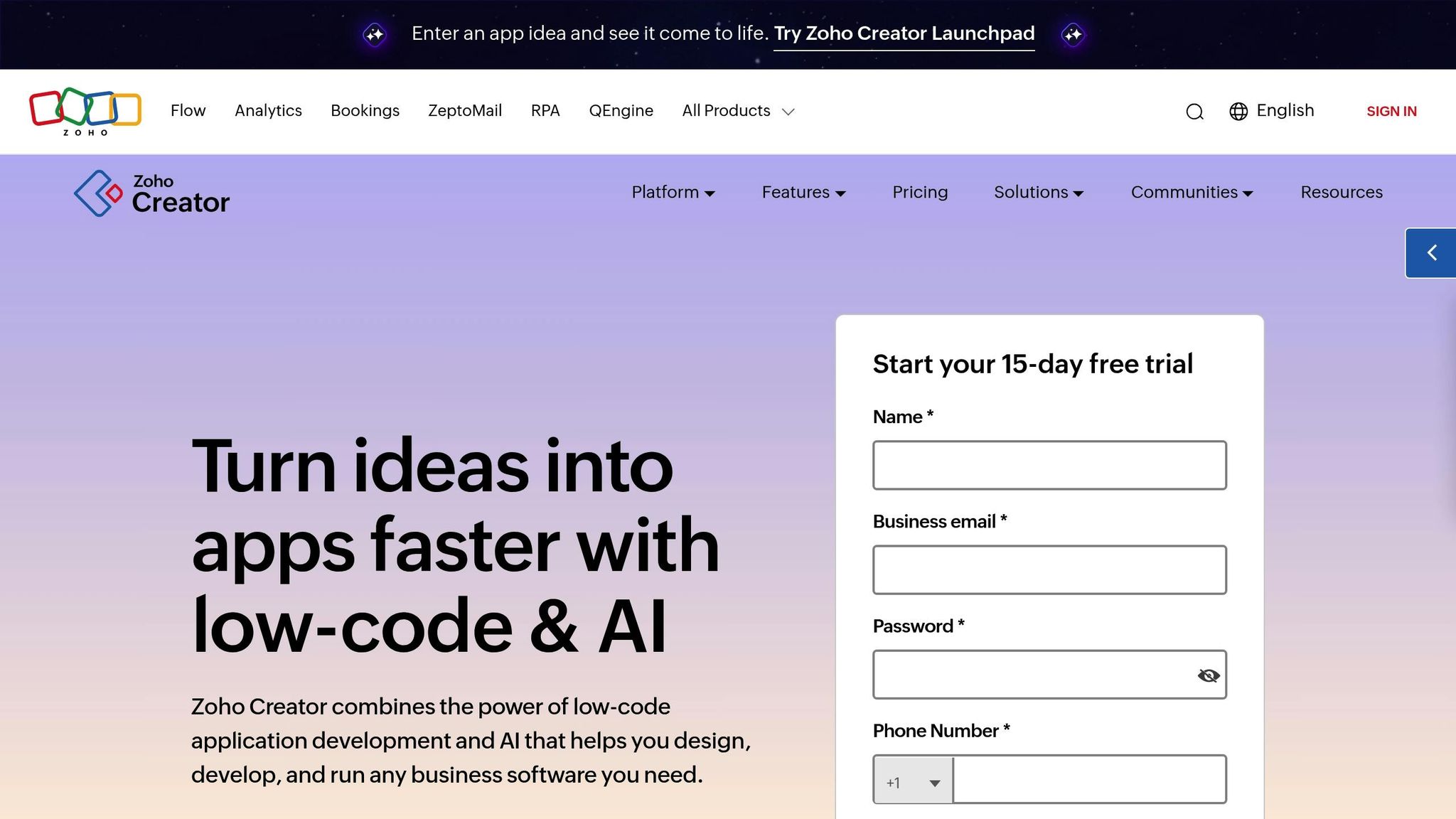
Zoho Creator’s drag-and-drop builder simplifies the process of arranging forms, charts, and buttons. You can easily resize elements, tweak layouts, and adjust spacing – all in real-time, without writing a single line of code.
The platform also comes with pre-built widgets designed to meet common business needs. For instance, date pickers are formatted to MM/DD/YYYY for U.S. users, currency fields display dollar signs with proper separators, and location widgets integrate GPS functionality. These features are particularly useful for field teams who need to log locations or navigate efficiently.
For more specialized needs, custom widgets are available. These allow you to create unique input fields, such as validating equipment serial numbers or building multi-step approval processes. Importantly, these widgets adapt seamlessly to different screen sizes and orientations.
Additionally, conditional logic tools make interfaces smarter by responding dynamically to user inputs. For example, selecting "New Customer" can reveal fields for company details and credit information, ensuring a clean interface while capturing all necessary data.
Next up: how role-based and device-specific customization adds even more flexibility.
Customizing UI for User Roles and Devices
Role-based customization ensures every team member sees only what they need. For example, sales managers might view dashboards with metrics like team performance and pipeline forecasts, while individual reps focus on their leads and daily tasks.
With Zoho Creator, you can control visibility of specific elements based on user permissions. For instance, financial data might be restricted to accounting staff, while customer contact details remain accessible to the entire sales team. This not only reduces screen clutter but also safeguards sensitive information.
Device-specific optimizations refine the experience further. On smartphones, forms might display one field per row for easier navigation, while tablets can utilize a multi-column layout to make the most of the larger screen.
Zoho also allows for tailored offline functionality. Field technicians, for instance, might need offline access to customer records and service histories, whereas office staff primarily rely on real-time data. You can configure what data syncs locally and manage storage requirements for each role.
Next, we’ll explore how Zoho ensures a seamless experience across devices with mobile responsiveness.
Mobile Responsiveness Setup
Zoho takes care of cross-platform consistency, ensuring that interfaces scale properly on both iOS and Android devices. A form built in Creator will look the same whether it’s accessed on an iPhone or an Android tablet.
With Progressive Web App (PWA) support, users get a native app-like experience directly through their browsers. They can add Zoho apps to their home screens, receive push notifications, and even work offline – all without needing to download separate apps. This makes deployment straightforward and ensures everyone is always using the latest version of the interface.
The platform also ensures that text, buttons, and input fields remain readable and proportionate, whether viewed on a 5-inch phone or a 12-inch tablet. Charts and graphs automatically resize to fit the screen without losing clarity.
Touch optimization is another highlight. Zoho Creator interfaces are designed with proper spacing between clickable elements, swipe gestures for navigation, and haptic feedback where supported. Keyboard types are matched to the input field – numeric keypads for dollar amounts, email keyboards for contact details, and date pickers for scheduling.
Finally, Zoho addresses variable mobile connectivity by allowing interfaces to function during brief connection losses. Data changes are queued for upload once the connection is restored, and users receive clear indicators about sync status and pending updates.
Zoho Mobile App UI Design Best Practices
Designing effective mobile interfaces for Zoho apps means sticking to time-tested principles. These practices ensure your apps are both functional and visually appealing across mobile devices.
Building Clear Navigation and Visual Hierarchy
Keep primary navigation within easy reach. Place main menu items at the bottom of the screen, where thumbs naturally rest. This setup works especially well for apps with three to five core features, making navigation effortless.
Size and spacing matter for usability. Buttons should be at least 44px tall, as recommended for touch interfaces. Key actions like "Save" or "Submit" should stand out with larger sizes compared to secondary options like "Cancel" or "Back."
Use color and contrast to guide users. Highlight primary action buttons with your brand’s main color, while keeping secondary actions in neutral tones. This helps users quickly identify the next step without needing to read every detail.
Breadcrumb navigation simplifies complex workflows. For multi-level Zoho Creator apps, such as those managing customer records or inventory, breadcrumbs provide a clear path back. Show users their current location and allow one-tap navigation to previous screens.
Group related functions visually. For instance, customer contact details (phone, email, address) should be grouped together, while billing information belongs in a separate section. This reduces cognitive load and speeds up task completion.
Once navigation is polished, the next step is refining your app’s color and typography.
Mobile Color Schemes and Typography
To complement intuitive navigation, focus on cohesive color schemes and typography.
Maintain a minimum contrast ratio of 4.5:1 for readability in all lighting conditions. This is especially critical for field teams using apps outdoors or in varied environments.
Adjust font sizes for mobile screens. Body text should be at least 16 pixels to ensure readability without zooming. Headers can range from 20 to 24 pixels, while small labels or secondary text should stay above 14 pixels.
Stick to a limited color palette. Use your brand’s primary color for interactive elements, a secondary color for highlights or notifications, and neutral grays for backgrounds and borders. Overusing colors can overwhelm users and weaken your app’s identity.
Opt for native system fonts like San Francisco for iOS and Roboto for Android. These load quickly and feel familiar to users. If custom fonts are necessary, ensure they remain legible at small sizes and don’t affect performance.
Follow standard status color conventions. Green signals success, red indicates errors, yellow warns of caution, and blue conveys information. Straying from these norms can confuse users who rely on these universal cues.
These design choices lay the groundwork for accessible and user-friendly interfaces.
Accessibility Standards Implementation
Beyond aesthetics, accessibility should be a core focus in your app design.
Clearly label all interactive elements. Buttons, input fields, and navigation items should have descriptive text for screen readers. For example, instead of labeling a button as "Submit", use "Submit Customer Order" to provide clear context.
Ensure touch targets are inclusive. Leave at least 8 pixels of space between clickable elements to prevent accidental taps. This is especially important for users with motor challenges or those wearing gloves.
Add alternative text for images and icons. Functional icons need clear descriptions of their purpose and state, while decorative images can be marked as such.
Support keyboard navigation. Allow users to navigate using external keyboards or assistive devices. Ensure tab order follows a logical sequence, and make focus indicators visible as users move between elements.
Don’t rely solely on color to convey information. For instance, if red text marks required fields, include an asterisk or the word "Required" for clarity. Similarly, pair color changes with icons or text labels for success and error states.
Test scalability for larger text. Verify that your interface works when text is scaled up to 200%. This is essential for users with vision impairments who depend on larger text for readability.
How to Customize Zoho Mobile App UIs
Transforming a basic app into a tailored solution for your business is easier with Zoho Creator’s tools for personalizing mobile app interfaces.
Designing App Layouts with UI Builder
With Zoho Creator’s UI Builder, you can use a simple drag-and-drop interface to design and tweak your app’s layout. Organize forms and dashboards to highlight essential information. Don’t forget to test your layouts on different devices and orientations to ensure they look great and function well across the board. You can also take advantage of pre-designed templates to quickly align your app’s layout with industry standards.
Using Design Templates
Zoho Creator comes with a library of over 250 mobile-responsive UI design templates, tailored for industries like finance, healthcare, sales, and marketing:
- Pick a template that suits your business needs.
- Customize colors, styles, and layouts to match your brand identity.
- Fine-tune individual components to maintain a consistent look throughout your app.
Adding Custom Widgets and Features
Once your layouts and templates are in place, custom widgets can take your app’s functionality to the next level. These widgets allow you to add features that are specific to your business operations. By integrating these custom elements, you create a seamless, branded mobile app experience that perfectly aligns with your business goals.
sbb-itb-058cafb
Matching UI Customization with Business Branding
Your mobile app should reflect your brand’s visual identity, creating a seamless connection between your business and its digital presence. If you’re using a Zoho mobile app, it’s essential to align its design with your company’s branding.
Adding Branding Elements
Incorporate your logo into prominent areas of the app, such as headers and login screens, to make your brand instantly recognizable.
Adjust the primary and secondary colors of headers, buttons, backgrounds, and text to match your brand’s color palette. With Zoho’s theme options or custom schemes, you can maintain a cohesive look across all interface elements.
Choose font styles and sizes that align with your company’s typography standards. Using system-native fonts ensures your app remains consistent with your brand’s design language.
Finally, adapt your app’s visual elements to meet local US business preferences and standards.
Customizing UI for Business Processes
Branding isn’t just about visuals – it’s also about how your app functions. To make your app a true extension of your business, customize its features to align with your workflows. Configure forms to collect the data that matters most, whether it’s customer service tickets, sales leads, or project milestones. Automate workflows to match your team’s processes, ensuring the app complements rather than disrupts daily operations.
Dashboards should be tailored to display the metrics your team relies on. For example, sales teams may need insights into pipelines and conversion rates, while service teams might prioritize ticket resolution times and customer satisfaction scores. By customizing these elements, your app becomes a valuable tool for your team.
US Business Localization
To connect with US users effectively, localize your app to reflect their preferences and expectations. Display financial data in the standard US format, such as $1,234.56, and use the MM/DD/YYYY date format to avoid confusion when scheduling or reviewing records. Additionally, adopt imperial units like feet, inches, pounds, and Fahrenheit to align with US measurement standards. These small but meaningful adjustments can improve user experience and encourage adoption, making your app a natural fit for your audience.
Professional Support for Advanced Customization
Once you’ve explored in-app customization features and best practices, you may find that more complex projects demand a higher level of expertise. While basic tweaks can often be handled by internal teams, advanced modifications and intricate integrations typically require professional help to avoid costly missteps and ensure everything runs smoothly.
Why Choose Professional Customization Services?
Professional customization services can transform challenging projects into streamlined, effective solutions. Experienced developers, well-versed in Zoho’s mobile platform, can craft intricate solutions that might take in-house teams months to figure out.
Here are some key advantages:
- Time Savings: In fast-paced US markets, time is money. Professional services can deliver advanced UI changes in a matter of weeks, speeding up your app’s launch and boosting your return on investment (ROI).
- Enhanced Features: Experts can implement advanced functionalities like custom visualizations, complex workflows, and API integrations – capabilities that may be beyond the reach of your internal teams.
- Quality Assurance: Professionals rigorously test your app to ensure it performs reliably across devices and operating systems, eliminating potential frustrations for users and minimizing productivity losses.
- Ongoing Support: From maintenance and updates to troubleshooting, expert services ensure your app stays optimized as Zoho continues to evolve.
With these benefits, partnering with specialists ensures that your customization efforts go beyond the basics, delivering solutions tailored to your unique business needs.
AorBorC Technologies‘ Expertise in Zoho Customization
When it comes to customizing Zoho apps for complex business requirements, AorBorC Technologies stands out. With over 13 years of experience and a team of certified professionals, they specialize in the full spectrum of Zoho services – from CRM enhancements to Creator app development and mobile app optimization.
What sets AorBorC Technologies apart is their commitment to understanding your specific business needs. Instead of applying one-size-fits-all solutions, they align your mobile app’s UI with your workflows, user roles, and processes. Their expertise in Zoho’s low-code tools allows them to craft efficient solutions that remain flexible for future adjustments.
Their approach emphasizes:
- Timely Delivery: Projects are completed on schedule and within budget, without compromising quality.
- Comprehensive Support: Their services cover every stage – from initial consultation and design to development, testing, launch, and ongoing maintenance.
- Measurable Results: Focusing on outcomes, they ensure your technology investment delivers clear, tangible ROI.
For businesses in the US, AorBorC Technologies provides advanced mobile UI solutions, including custom widgets, workflow automation, and seamless integrations – all tailored to meet local standards and expectations. By leveraging their expertise, you can take your Zoho mobile app to the next level, ensuring it’s not only functional but also a key driver of business efficiency.
Conclusion: Improving Business Efficiency with Custom Zoho UIs
Customizing your Zoho mobile app UI isn’t just about aesthetics – it’s about creating a tool that drives real business results. When your app’s interface is tailored to match your workflows, user roles, and branding, it empowers your team to perform at their best.
Investing in custom app development can increase operational efficiency by as much as 30%. A well-designed interface saves time, simplifies updates, and provides clearer dashboards, turning technology into a genuine competitive edge.
Zoho Creator offers a powerful set of tools to make customization achievable for businesses of all sizes. With over 200 design templates and more than 80 mobile-specific controls, you have everything you need to create an app that works for you. The drag-and-drop UI builder allows you to make meaningful changes without needing advanced technical skills, and features like offline functionality ensure your team stays productive no matter the connectivity situation.
When your UI is built around your specific business processes, key metrics improve across the board – faster task completion, fewer user errors, higher app adoption rates, and better user satisfaction. For example, a well-structured interface helps your customer service team resolve tickets quicker, enables inventory managers to navigate workflows with fewer mistakes, and provides executives with dashboards that deliver data in a way that’s easy to act on. These improvements directly translate into smoother and more efficient operations.
For businesses in the US, localization options like currency, date, and measurement formats add an extra layer of usability, boosting user confidence and reducing unnecessary friction.
Whether you’re leveraging Zoho’s built-in customization tools or working with experts like AorBorC Technologies for advanced solutions, investing in a custom UI leads to better productivity, stronger user adoption, and streamlined workflows. Your mobile app becomes more than just a tool – it evolves into a strategic asset that adapts as your business grows and changes. This comprehensive approach to customization ensures your Zoho app supports your goals and drives long-term efficiency.
FAQs
How does Zoho Creator’s drag-and-drop builder simplify mobile app customization for users without coding skills?
Zoho Creator’s drag-and-drop builder makes designing mobile app interfaces straightforward, even if you’ve never written a line of code. Its user-friendly tools let you visually organize and tweak app elements to align with your business goals and branding preferences.
This low-code platform simplifies mobile app development, offering native support for both iOS and Android. It allows you to build professional, mobile-ready apps quickly and efficiently, cutting out the complexities of traditional coding while making customization a breeze.
How do role-based access and device-specific design improve Zoho mobile app customization?
Using role-based access control in Zoho mobile apps adds an extra layer of security by restricting data access according to each user’s role. This setup not only safeguards sensitive information but also helps maintain privacy and blocks unauthorized access – all while adapting to the specific requirements of your business.
The device-specific design ensures the app is tailored for different devices like smartphones and tablets, whether you’re using Android or iOS. This means smoother navigation, quicker performance, and an improved overall experience, enabling your team to stay productive no matter which device they use.
How does Zoho ensure its mobile apps are user-friendly, responsive, and functional offline?
Zoho places a strong emphasis on making its tools work seamlessly on mobile devices while also offering offline functionality. With the Zoho Creator mobile app, you can access your forms and reports even when you’re offline. The app caches your data locally, allowing you to keep working without interruption. Once you’re back online, any updates are automatically synced.
Zoho also supports hybrid app development, blending the best of web and native app features. This approach not only improves performance but also boosts offline usability, ensuring businesses can stay efficient regardless of where or how they use Zoho applications.