
CMS integration with Zoho streamlines how businesses manage content and customer data. By connecting your CMS with Zoho tools like Zoho CRM and Zoho Creator, you can automate workflows, improve data accuracy, and create personalized customer experiences. Here’s what you’ll learn:
- What is CMS integration? It connects your website’s content system with Zoho’s suite of business tools.
- Why integrate? Automate lead management, simplify customer journeys, and improve team collaboration.
- How to set it up? Use Zoho Flow to create workflows, map data fields, and test integrations.
- Best practices: Align with U.S. standards (e.g., MM/DD/YYYY, $ formatting) and ensure compliance with data privacy laws like CCPA.
Integrating Zoho with your CMS transforms your operations, making it easier to manage leads, personalize customer interactions, and handle projects efficiently. Start by identifying your goals, mapping data, and testing workflows to ensure everything runs smoothly. If needed, expert providers like AorBorC Technologies can assist with setup and optimization.
How to Integrate CMS with Zoho Tools
Connecting your CMS with Zoho tools is easier than you might expect. You don’t need advanced technical skills or a hefty budget to get started. A great way to make this happen is by using Zoho Flow, a platform designed to automate workflows between your CMS and Zoho applications. Let’s dive into how Zoho Flow simplifies these integrations.
Setting Up Workflows with Zoho Flow
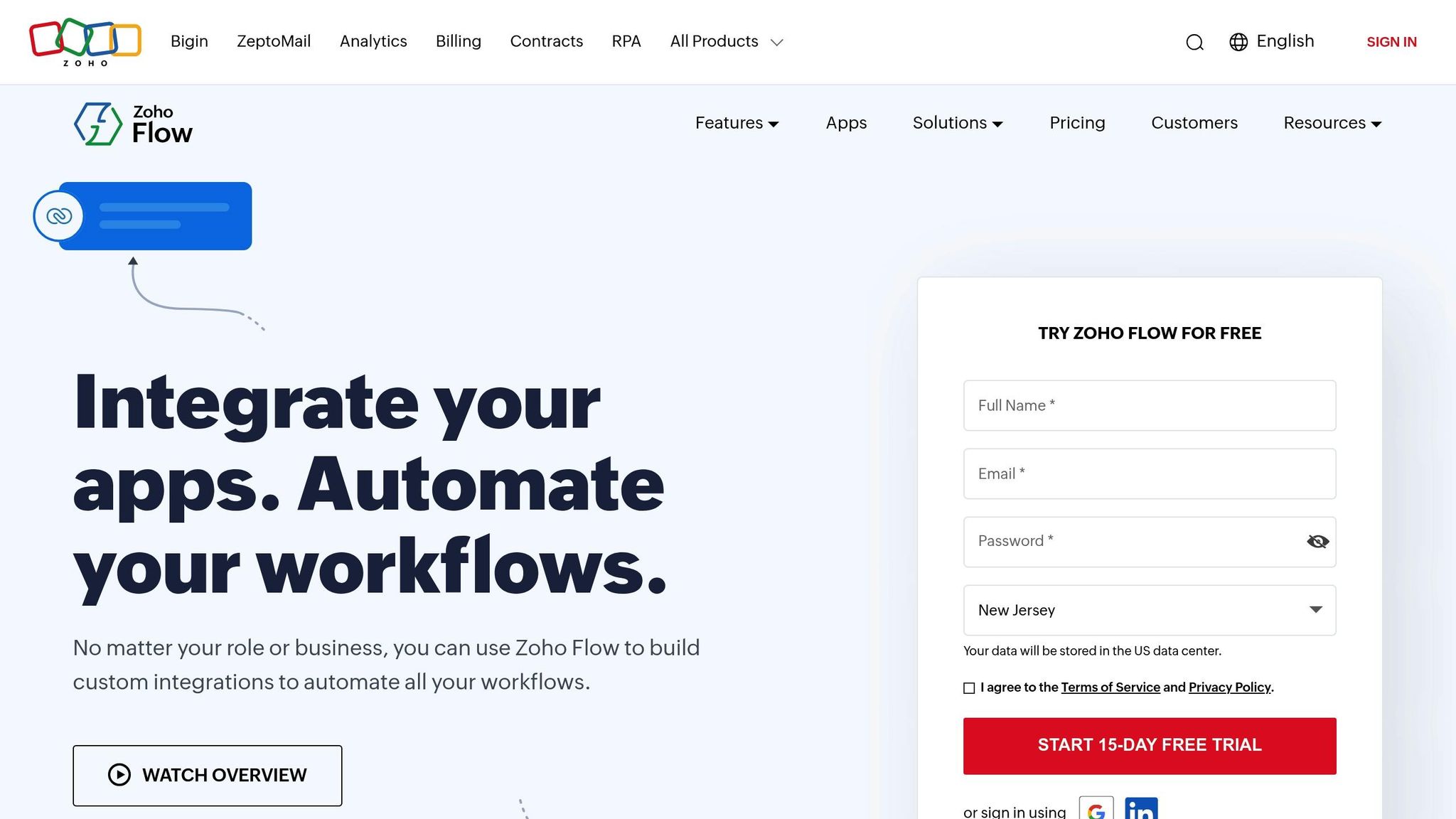
Zoho Flow allows you to create automated, data-driven workflows that connect your CMS with Zoho apps like Zoho CRM, Zoho Desk, Zoho Forms, Zoho Marketing Automation, and Zoho Projects. The platform’s intuitive drag-and-drop builder makes it straightforward to set up these integrations without writing a single line of code.
Zoho Flow supports hundreds of apps and includes a dedicated category for CMS platforms under "Website and App Builder." There are also WordPress-specific options under "App Ecosystems", giving you the flexibility to connect virtually any CMS with Zoho’s suite of tools.
Here’s how it works: workflow triggers in Zoho Flow respond to specific events on your CMS. For example, if someone fills out a form on your website, you can automatically assign the lead to the right sales rep. Using logic elements, you can build conditional automations – like flagging a visitor as a high-priority lead if they download a premium resource, such as a whitepaper.
This integration eliminates data silos, giving your teams a unified view of customer interactions. For instance, your customer support team can see a visitor’s recent activity on your website alongside their support ticket history. Similarly, your marketing team can trigger campaigns based on user engagement data.
If you need help fine-tuning your Zoho Flow workflows, AorBorC Technologies provides expert guidance to ensure your integrations run smoothly and efficiently.
Step-by-Step CMS-Zoho Integration Guide
Simplify the integration of your CMS with Zoho tools by following these key steps.
Identify Your Integration Requirements
Start by setting clear objectives for the integration. Are you looking to improve data accuracy, enhance customer segmentation, or automate marketing tasks? Defining your goals will help shape the integration process.
Next, map out your customer journey to identify where data is collected and how it flows. This will highlight any gaps that the integration can address. Think about the kind of customer experience you want to deliver – automated data flow can help you provide faster, more tailored interactions while reducing missed opportunities.
Determine which data points need to sync between your systems. Common examples include customer details, purchase history, and interaction records. Depending on your business, you might need specific fields. For instance, a real estate agency may prioritize "property type" and "budget range", while an e-commerce company might focus on "product preferences" and "purchase frequency."
Avoid overloading the integration with unnecessary connections. Stick to the tools and data that your team actively uses and that directly impact your business outcomes. Once you’ve clarified your goals and data needs, you’re ready to configure your systems.
Set Up and Map Data Fields
With your requirements in place, the next step is to map the data fields between your CMS and Zoho CRM. This ensures smooth and accurate data transfer.
Start by creating a detailed mapping plan. Standardize field names and formats to prevent errors. For example, if your CMS uses "Phone Number" while Zoho CRM uses "Phone", make sure these align before syncing.
If needed, customize fields in Zoho CRM to capture data specific to your business. For instance, a dental practice might add fields like "practice size" or "current software", while a manufacturing company could include "industry sector" or "annual revenue." Tailoring fields to your needs ensures the integration supports your unique workflows.
Use Zoho CRM’s import tool to map fields from CSV or Excel files. Begin with a small test migration to confirm that data – like customer names, contact info, and deal histories – transfers correctly. This test run lets you tweak the mapping before handling the full dataset.
Once your mapping is finalized, move on to testing the integration.
Test and Improve Your Integration
Thorough testing is critical to ensure your integration works seamlessly in real-world scenarios.
Simulate actual business processes to validate the integration. For instance, submit forms through your CMS and check that the data appears correctly in Zoho CRM, with all fields mapped as intended. Test different scenarios and user types to confirm the system handles various inputs smoothly.
Pay close attention to data validation rules during this phase. If Zoho CRM requires specific fields to be filled, ensure your CMS collects that information. Test how the system reacts to incomplete or incorrectly formatted data.
Monitor your integration closely after launch. Set up alerts to catch failed data transfers or sync errors early. During this period, small adjustments can significantly enhance reliability.
As your business evolves, so will your integration needs. Regularly review and refine your setup to streamline workflows, add new connections, or remove unnecessary complexities.
Document any issues and their solutions to build a knowledge base for your team. This resource will simplify troubleshooting and make future updates easier. If you need expert assistance, consider reaching out to AorBorC Technologies for guidance on optimizing your integration and meeting your business goals.
Real-World Applications for US Businesses
Leveraging the seamless connection between your CMS and Zoho, these practical applications highlight how U.S. businesses can streamline operations and boost efficiency.
Automatic Lead Management
Integrating your CMS with Zoho CRM ensures smooth lead management by automatically transferring visitor data into the CRM. This eliminates manual data entry and ensures no lead slips through the cracks.
For example, when someone submits a contact form on your website, a new lead record is instantly created in Zoho CRM with all the relevant details. The system can automatically assign leads based on factors like location, company size, or product interest. For instance, inquiries from California could be routed to the West Coast team, while enterprise-level leads might go directly to senior representatives.
This integration also enables automated lead scoring. By analyzing visitor behavior – like pages they viewed or links they clicked – Zoho CRM assigns scores to leads, helping your sales team focus on the most promising prospects.
Email marketing campaigns also benefit. If a lead downloads a whitepaper, Zoho CRM can trigger a targeted email sequence tailored to their interests. This personalized follow-up keeps leads engaged and moves them through the sales funnel more effectively.
Additionally, the integration tracks where leads originate – whether through Google search, social media, or referral links. This insight helps refine your marketing strategies and allocate resources to the most effective channels.
Custom Customer Experiences
Zoho CRM transforms your website into a personalized experience for each visitor by tailoring content to their purchase history, preferences, or current needs.
For service-based businesses, this means showcasing relevant content. A marketing agency, for instance, might display case studies specific to a prospect’s industry, while an accounting firm could highlight seasonal tax services. The CMS pulls data from Zoho CRM to adjust content dynamically.
E-commerce businesses can use this integration to boost sales with personalized product recommendations. If a customer frequently buys office supplies, your website could highlight new arrivals or suggest complementary items they haven’t purchased yet.
Customer support also becomes more effective. When your help desk system connects with Zoho CRM, support agents can instantly access a customer’s full history – purchases, past tickets, and communication preferences – all in one place. This context allows agents to resolve issues faster and deliver a smoother customer experience.
Membership sites and client portals gain significant benefits, too. For example, professional services firms can create dashboards that show project updates, billing details, and resources tailored to each client. These dashboards update automatically as milestones are completed in Zoho CRM, ensuring clients always have up-to-date information.
Better Project Management
Combining Zoho Creator with your CMS gives businesses a powerful way to manage projects, especially when juggling multiple clients and deadlines.
For instance, custom project tracking becomes effortless. A web design agency could have clients submit project requests via the website, which then automatically generates detailed project records in Zoho Creator. These records can include timelines, resource needs, and milestone tracking.
Integrated project portals allow clients to view real-time updates directly on your website. They can track completed tasks, upcoming deadlines, and any issues without needing manual updates from your team.
Resource allocation also improves. By syncing project data, your CMS can display team availability and workload capacity, giving clients a clear picture of timelines while helping your team balance resources effectively.
Billing and invoicing become seamless with this integration. As team members log hours and expenses, Zoho Creator can automatically generate invoices and send them through your CMS-based client portal. This reduces administrative work and ensures accurate billing.
The integration also supports automated reporting. Weekly project updates can be pulled from Zoho Creator and sent to clients via email, saving your team time while keeping stakeholders informed.
For industries with compliance requirements, the system maintains a detailed audit trail. Every project update, communication, and approval is recorded across both platforms, ensuring thorough documentation while streamlining operations. These features showcase how integration can transform project management, setting the stage for even greater efficiency.
sbb-itb-058cafb
Best Practices for CMS-Zoho Integration
A well-planned CMS-Zoho integration can streamline your operations, but it’s essential to follow proven strategies to ensure it aligns with U.S. business needs. These practices help you avoid common roadblocks and set the stage for long-term success.
US Business Localization Settings
For U.S. businesses, maintaining proper localization settings is critical to ensure data accuracy and consistency across systems. From the start, your integration should be configured to handle American formatting standards.
Here’s what to prioritize:
- Date formats: Use MM/DD/YYYY for all data exchanges.
- Currency settings: Display amounts as $1,234.56, with commas for thousands and periods for decimals.
- Language preferences: Default to U.S. English for templates, labels, and messages.
Time zones also deserve special attention. If your business spans multiple U.S. time zones, establish clear rules for recording timestamps. For example, a lead captured at 2:00 PM Pacific Time should be logged consistently across all systems. This consistency is particularly important for e-commerce platforms, where pricing and sales data flow from your CMS to Zoho CRM. Misaligned timestamps or formats can lead to errors in customer records, project timelines, or sales reports.
Data Privacy and Compliance Requirements
Beyond localization, your integration must meet U.S. data privacy and compliance standards to protect your business and earn customer trust.
Compliance mandates vary based on your industry and customer base. For example:
- Adhere to CCPA for California residents.
- Ensure GDPR compliance for international customers.
- Follow HIPAA for healthcare data or SOX for financial records.
Your integration should include tools to handle data deletion requests, provide access reports, and track consent preferences.
Data security protocols are equally important. Implement measures like encryption for data in transit and at rest, role-based access controls, and detailed audit trails. Use HTTPS for all API communications and set up automated backups with tested recovery processes. For example, when a customer requests data removal, your integration should automatically update records across both your CMS and Zoho while maintaining compliance with record-keeping regulations.
Working with Expert Providers
While a streamlined technical setup is vital, partnering with experienced providers can elevate your integration strategy. Experts can reduce risks, speed up the process, and save costs in the long run.
- Faster implementation with deep platform knowledge: Professionals familiar with Zoho’s 45+ applications can identify the most reliable APIs, recommend the right combination of tools, and use proven frameworks to complete the integration faster than in-house teams.
- Strategic planning for cost-effective solutions: Providers like AorBorC Technologies can assess your current systems, pinpoint integration opportunities, and design scalable solutions. They focus on efficient methods to minimize unnecessary customizations and avoid costly mistakes.
- Advanced customization and ongoing improvements: Expert providers can create tailored workflows, connect third-party tools, and add specialized features. They also monitor performance, apply updates, and adjust configurations as your business needs evolve.
- Training, support, and risk management: Structured training programs help your team adopt the integrated systems quickly. Providers also identify potential issues early, implement error-handling mechanisms, and establish backup procedures to safeguard your operations.
Conclusion
This guide has explored how integrating your CMS with Zoho tools can streamline operations and enhance customer engagement. By automating workflows, businesses can reduce errors and improve efficiency, transforming how they operate.
Key Takeaways
The foundation of a successful integration lies in understanding your business needs. Whether you’re automating lead capture through Zoho CRM or building tailored applications with Zoho Creator, it’s crucial to map out your current processes. This helps identify areas where automation can deliver the most impact.
For flexible integration, tools like Zoho Flow or the Zoho API are invaluable. These options provide the control needed to manage data flow and implement custom functionalities for more complex requirements.
To maximize the benefits, align your integrations with U.S. standards. Ensure proper localization for formats like MM/DD/YYYY and currency displays such as $1,234.56. Additionally, compliance with regulations like CCPA not only safeguards your business but also fosters trust with your customers.
Keep in mind that integrations aren’t a one-and-done deal. Regular maintenance – like cleaning up data, reviewing workflows, and monitoring performance – is essential to keep your systems running smoothly as your business evolves.
Next Steps
Start by assessing your current systems. Pinpoint repetitive tasks, bottlenecks in data handling, or gaps in communication. Test the waters with a pilot integration of one critical workflow to refine your approach.
If you need expert help, consider working with professionals. AorBorC Technologies specializes in Zoho CRM customization and Zoho Creator app development, offering the expertise to implement scalable solutions tailored to your needs.
Finally, remember that long-term success requires ongoing effort. Schedule regular data reviews, provide training for your team, and gather feedback to ensure your integrated systems continue to deliver value as your business grows.
FAQs
How can Zoho Flow help integrate a CMS without requiring technical expertise?
Zoho Flow takes the hassle out of CMS integration, offering a user-friendly solution that doesn’t require any coding knowledge. With its drag-and-drop interface, you can build custom workflows with ease. This means you can connect your CMS to various apps, automate repetitive tasks, and simplify processes – all without needing a technical background.
From managing leads to syncing data or setting up automated notifications, Zoho Flow handles it all smoothly. It’s a great choice for small businesses and teams aiming to save time and work more efficiently, allowing you to concentrate on growing your business instead of dealing with technical roadblocks.
How can you ensure data privacy and compliance when integrating Zoho tools with a CMS?
To maintain data privacy and compliance when integrating your CMS with Zoho tools, begin by activating privacy-focused features. These include GDPR compliance settings, consent management, and data processing bases provided within Zoho. Adjust these settings to match both legal standards and your company’s internal policies.
Another key step is utilizing Zoho’s encryption options, such as AES-256, to safeguard sensitive user data. Beyond that, ensure you’re following proper data handling practices, securing clear user consent, and routinely auditing your compliance configurations. This helps protect information while staying aligned with privacy regulations.
How can U.S. businesses ensure their CMS and Zoho integration meets localization and compliance standards?
To align CMS and Zoho integration with U.S. localization and compliance standards, businesses can rely on Zoho’s strong security framework. With certifications like SOC 1 Type 2, SOC 2, and ISO 27001, Zoho meets critical industry benchmarks. To maintain data security and comply with regulations, prioritize secure authentication methods, keep comprehensive documentation, and schedule regular audits.
For effective localization, adjust regional settings to match U.S. standards – use the dollar symbol ($) for currency, the MM/DD/YYYY format for dates, and imperial units for measurements. Incorporating multilingual content management and customizing content to reflect local preferences can further improve user experience and ensure a smooth connection with American audiences.