

Creating a user-friendly Zoho app interface is all about making tasks easier for your team. A well-designed UI saves time, reduces errors, and improves productivity. Here’s how to achieve it:
- Understand user workflows: Map out daily routines and identify pain points to streamline processes.
- Keep layouts simple: Use clean designs with clear sections, minimal fields, and consistent spacing.
- Prioritize accessibility: Ensure readable fonts, high contrast, and keyboard-friendly navigation.
- Focus on navigation: Use tabs, breadcrumbs, and search functionality to help users find information quickly.
- Design for mobile: Make interfaces touch-friendly and responsive across devices.
- Customize for business needs: Use Zoho’s tools to create role-specific layouts, automate tasks, and integrate apps.
Core Principles of User-Focused Design for Zoho Apps
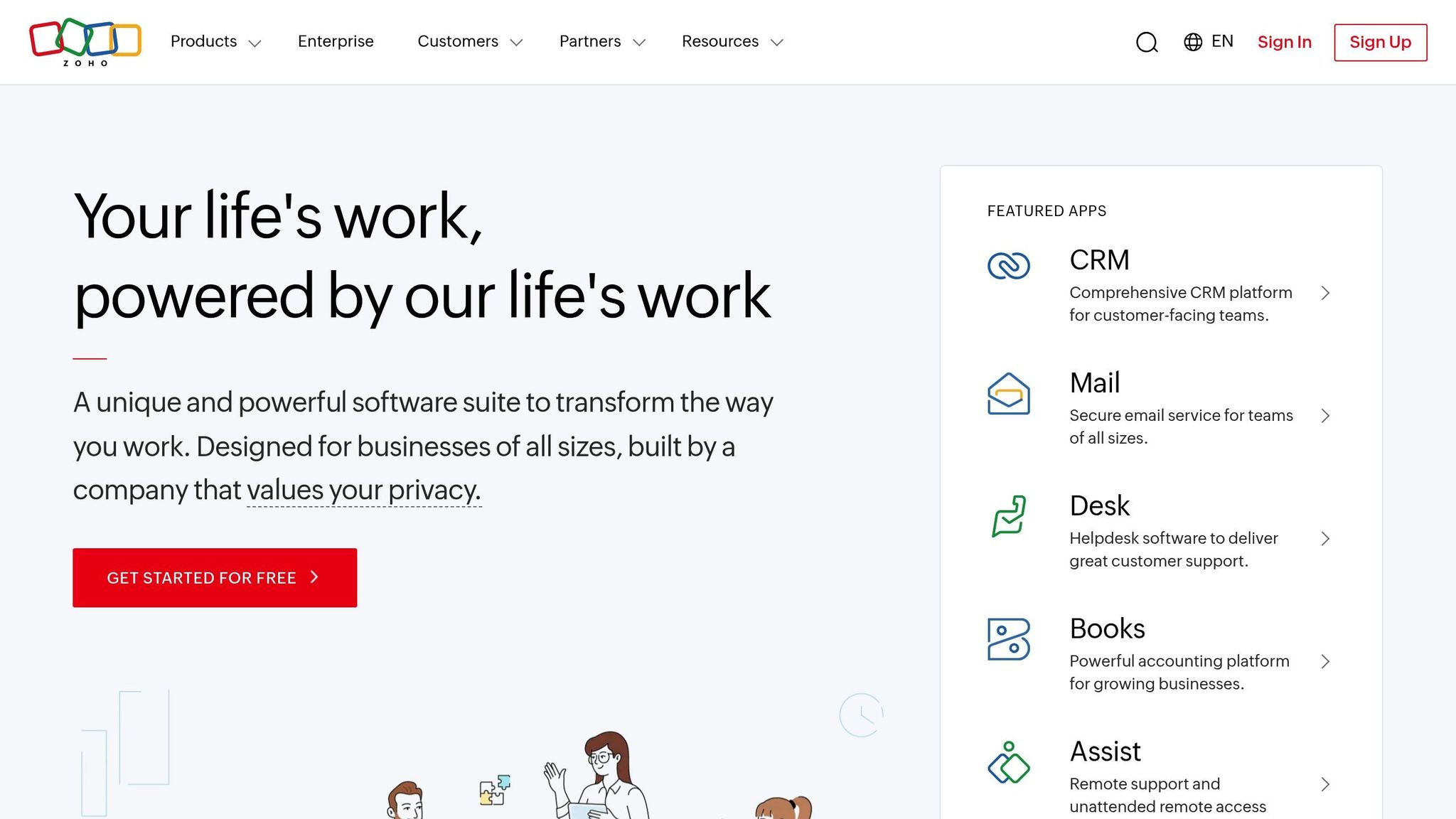
Zoho apps shine when their interfaces align with real-world user workflows. The goal? To understand how people work, identify what they need to achieve, and eliminate anything that slows them down. The best Zoho apps feel natural to use because they mirror the way users actually think and act.
Understanding User Journeys and Requirements
Start by mapping out your team’s daily routines. For instance, a sales rep might kick off their day by checking appointments in Zoho CRM, reviewing account notes, updating deal stages, and logging follow-ups. Every step should flow seamlessly into the next.
Spend some time observing users in action. Watch how they navigate screens, note where they hesitate, and spot repetitive tasks. Pay attention to the information they rely on most – like customer contacts, recent communications, or upcoming deadlines.
Document these observations visually. For example, if your customer service team handles support tickets, outline their process from reviewing the ticket to resolving it and following up. This can highlight areas where you might reduce clicks, remove unnecessary fields, or better display key details.
Ask users direct questions to uncover pain points. Questions like, "What takes the most time in your day?" or "Which screens do you visit the most?" can reveal where custom layouts or automation could make the biggest difference.
Also, consider the environment where users interact with the app. A field technician using a tablet may need larger buttons and simplified forms, while office-based analysts might prefer detailed dashboards with advanced filtering options. These insights should shape your design choices.
Simple and Clear Layouts
Once you’ve outlined user workflows, focus on creating interfaces that are clean and easy to navigate. Overcomplicated screens can overwhelm users, slowing them down. The best designs stick to a "less is more" philosophy – showing only what’s necessary for the task at hand while keeping secondary options accessible.
Organize related content into clear sections using containers and white space. For example, group contact details, communication logs, and deal data into separate, distinct areas. This makes it easier for users to find what they need without feeling overloaded.
Limit form fields to only the essentials. If you need to collect a lot of information – say, 20 data points – break it into steps or make some fields optional. Research shows that shorter forms are completed more often.
Keep spacing and alignment consistent across the interface. Properly aligned elements create a sense of order and make navigation feel smoother, while inconsistent spacing can confuse users.
Choose fonts and colors that enhance readability. Stick to a few font sizes, ensure good contrast between text and background, and use color sparingly to emphasize key actions or details.
Design with mobile users in mind from the start. Many people access Zoho apps on smartphones or tablets, so ensure buttons are easy to tap, text is readable on smaller screens, and touch gestures work smoothly.
Accessibility and Inclusivity
Accessibility isn’t just about meeting guidelines – it’s about creating better experiences for everyone. Features designed for users with disabilities often improve usability for all, especially in challenging environments like bright sunlight or noisy workplaces.
Ensure text and background colors have enough contrast for easy reading. A contrast ratio of at least 4.5:1 is recommended for regular text, benefiting users with visual impairments and those using mobile devices outdoors.
Don’t rely solely on color to convey information. For example, instead of using just red text for errors, pair it with icons or bold text. This helps users with color blindness and makes important details stand out for everyone.
Make sure all interactive elements are keyboard-friendly. Some users, particularly those with motor impairments, may rely on a keyboard. Logical tab orders and keyboard shortcuts can also speed things up for power users. Every button or link should be usable without a mouse.
Use clear, descriptive labels for buttons and form fields. Instead of vague terms like "Submit" or "Click Here", go for specifics like "Save Customer Info" or "Generate Report." This helps users of screen readers and improves overall clarity.
Test your designs with a diverse group of users. Automated tools can miss issues that real-world testing will uncover. Feedback from a variety of perspectives ensures the app works well for everyone.
Finally, consider readability. While oversized text isn’t necessary, key details should be easy to read without zooming. Offering options to adjust text size can further enhance the experience. Accessible design isn’t just good practice – it’s essential for creating user-friendly Zoho apps.
Improving Navigation and Workflows
Efficient navigation and streamlined workflows are the backbone of a productive user experience. When users can move through tasks effortlessly, they save time and energy, allowing them to focus on what matters most.
Clear Navigation Structures
Navigation acts as a guide, helping users find what they need and complete tasks without confusion. Here are some ways to create a more intuitive structure:
- Tabs: Organize related information into tabs within a single record. For example, in Zoho CRM, tabs can separate sections like contact details, communication history, deals, and notes. This keeps the interface clean and ensures users can quickly locate what they need without overwhelming the main view.
- Breadcrumbs: These are especially useful for multi-level navigation. If a user starts at an accounts overview, drills down to a specific company, and then views a contact, breadcrumbs clearly show their path. They also allow users to backtrack easily, avoiding the frustration of getting lost in complex menus.
- Sidebar Menus: A well-structured sidebar can provide quick access to different modules or sections. Place frequently used items at the top and group related functions together. For instance, customer-focused modules like CRM, support tickets, and invoices should be in close proximity.
- Contextual Menus: These menus adapt based on the current view. For example, when a user opens a customer record, the menu could highlight actions like "Create Quote" or "Schedule Follow-up." This reduces mental effort by showing only the options relevant to the task at hand.
- Search Functionality: A powerful search bar is a must-have. Place it prominently and ensure it can locate records, functions, and even help articles. Many users prefer searching over clicking through menus, especially when they know exactly what they’re looking for.
By combining these navigation techniques, you can create a user-friendly interface that feels natural and intuitive.
Responsive Design Across Devices
With users accessing Zoho apps on everything from desktops to smartphones, your interface must adapt seamlessly to different screen sizes without sacrificing usability.
- Mobile-First Thinking: Start by focusing on the core actions users need on mobile devices. For example, a sales rep on the go might need to update deal stages, log calls, or check contact details. Design these actions to work flawlessly on small screens first, then enhance them for larger devices.
- Touch-Friendly Elements: Buttons and clickable areas should be large enough – at least 44 pixels in size – to ensure accurate taps. Spacing between elements matters too, as it prevents accidental clicks.
- Progressive Disclosure: Avoid overloading small screens with too much information. Instead, display key details upfront and let users expand sections for more. For instance, show a customer’s name, phone number, and recent activity first, with additional details available through collapsible sections.
- Avoid Horizontal Scrolling: Users expect to scroll vertically on mobile devices. If content requires horizontal scrolling, it’s a sign the design needs adjustment. Consider stacking elements vertically or using collapsible layouts instead.
- Real-Device Testing: Simulated previews often miss issues that arise on actual devices. Testing on a variety of phones ensures the design feels intuitive across different screen sizes and touch interactions.
A responsive design ensures that users can switch between devices without missing a beat, maintaining consistency and functionality across the board.
Simplifying Common Tasks
Beyond navigation and responsive design, simplifying routine tasks can significantly enhance user efficiency. By observing user behavior and analyzing data, you can identify opportunities to streamline frequently performed actions.
- Quick Actions and Inline Editing: For tasks like updating a deal stage, provide single-click options or inline editing directly within list views. This eliminates unnecessary steps and speeds up workflows.
- Batch Operations: Allow users to select multiple records and apply changes all at once. For example, updating the status of several leads or assigning them to a team member can be done in a few clicks.
- Smart Defaults: Reduce repetitive data entry by setting intelligent defaults. If most new leads come from web inquiries, pre-fill "Web" as the default lead source.
- Confirmation Messages and Progress Indicators: After saving a record or initiating a lengthy process like data imports, show clear confirmation messages or progress bars. This reassures users that the system is working.
- Keyboard Shortcuts: Make routine actions faster with universal shortcuts like Ctrl+S to save, Ctrl+N to create a new record, or Ctrl+F to search. Ensure these shortcuts are consistent across the platform and provide documentation to encourage adoption.
- Contextual Actions: Offer relevant options directly within the current view. For instance, while viewing a quote, users could convert it to an invoice or send it to a customer without navigating to another screen.
These optimizations make tasks not only possible but effortless. When users can focus on their work without struggling with the interface, productivity and satisfaction naturally follow.
Visual Hierarchy and Brand Consistency
For Zoho app interfaces, establishing a clear visual hierarchy and maintaining consistent branding are essential. These elements work together to guide users effectively and reinforce your business identity. When done right, users can navigate the interface with ease, focusing on what’s important rather than being distracted by cluttered layouts.
Organizing Elements with Visual Hierarchy
Visual hierarchy is about directing user attention and creating a logical flow through an interface. By carefully balancing size, color, and spacing, you can highlight critical elements and make navigation intuitive.
- Size and Typography: Stick to three text sizes on desktop (header, subheader, body) and two on mobile. This keeps the focus on important actions without overwhelming users.
- Color and Contrast: Use bright colors sparingly for primary actions or alerts, while muted tones can handle secondary functions. High contrast between text and background ensures readability, especially for those with visual impairments.
- Strategic Whitespace: Add breathing room around buttons, forms, and content sections. This groups related elements, makes key information stand out, and prevents visual overload.
- Reading Patterns: U.S. users often scan pages in F- or Z-shaped patterns. Place navigation menus, key metrics, and CTAs in the top-left or along prominent horizontal lines.
For instance, in a Zoho CRM contact record, the contact’s name and company might be displayed prominently in large text. Supporting details like phone numbers and emails can follow in slightly smaller text, while less critical information (e.g., creation dates) is displayed in lighter, smaller text to avoid distraction.
Maintaining Brand Consistency
Your Zoho apps should reflect your brand seamlessly, creating a unified experience across all user interactions. This consistency fosters trust and reinforces a polished, professional image.
- Color Palettes: Stick to your brand’s color scheme. Use your primary brand color for key actions like "Save" or "Create New", while secondary colors can highlight supporting information or statuses.
- Typography and Fonts: Keep fonts, weights, and styles consistent across the interface. For example, headers, buttons, and labels should share the same typography to create a cohesive look.
- Iconography and Visual Elements: Custom icons that reflect your brand’s personality – whether modern, minimalist, or approachable – enhance the user experience.
- Component Consistency: Ensure buttons, form fields, and other interactive elements behave and look the same throughout the app. This reduces user confusion and makes the interface feel intuitive.
In January 2021, the Nielsen Norman Group highlighted how companies like IKEA, Target, and Etsy maintain consistent navigation standards. Features like prominent search bars, easy account access, and clear shopping cart indicators align with user expectations and simplify the experience.
At AorBorC Technologies, we apply these principles to every Zoho app we design. The result? Interfaces that not only engage users but also strengthen your brand identity.
Adapting to U.S. Standards
To meet U.S. user expectations, it’s not enough to translate text – you’ll need to adjust formats, conventions, and design elements to align with familiar patterns.
- Date and Time Formats: Use the MM/DD/YYYY format for dates and a 12-hour clock with AM/PM indicators for time. For example, display a date as 12/25/2024 instead of 25/12/2024.
- Currency and Number Formats: Show financial data with dollar signs ($) and commas as thousand separators, like $1,234.56, to ensure clarity and trust.
- Phone Number Conventions: Format phone numbers as (XXX) XXX-XXXX and use input fields that automatically apply this formatting for consistency.
- Spelling and Language: Stick to American English spelling (e.g., "color" instead of "colour") and ensure terminology is consistent throughout the app.
- User Interface Patterns: Follow familiar U.S. design conventions, such as placing logos in the top-left corner, using a magnifying glass icon for search, and positioning navigation elements where users expect them.
In January 2021, the Nielsen Norman Group analyzed Sutter Health’s appointment check-in process and found that inconsistent placement of the "Finish Later" button caused confusion and accidental clicks. To avoid similar issues, set appropriate defaults like pre-filling common date ranges, defaulting to U.S. time zones, and using familiar measurement units. These small adjustments streamline workflows and create an interface that feels natural to American users.
sbb-itb-058cafb
Customizing Zoho Apps for Business Needs
Zoho apps are designed with user-focused principles, but taking the time to customize them can align the tools even more closely with your specific business workflows. Here’s how you can tailor Zoho apps to meet your unique needs.
Using Zoho Creator and CRM Features
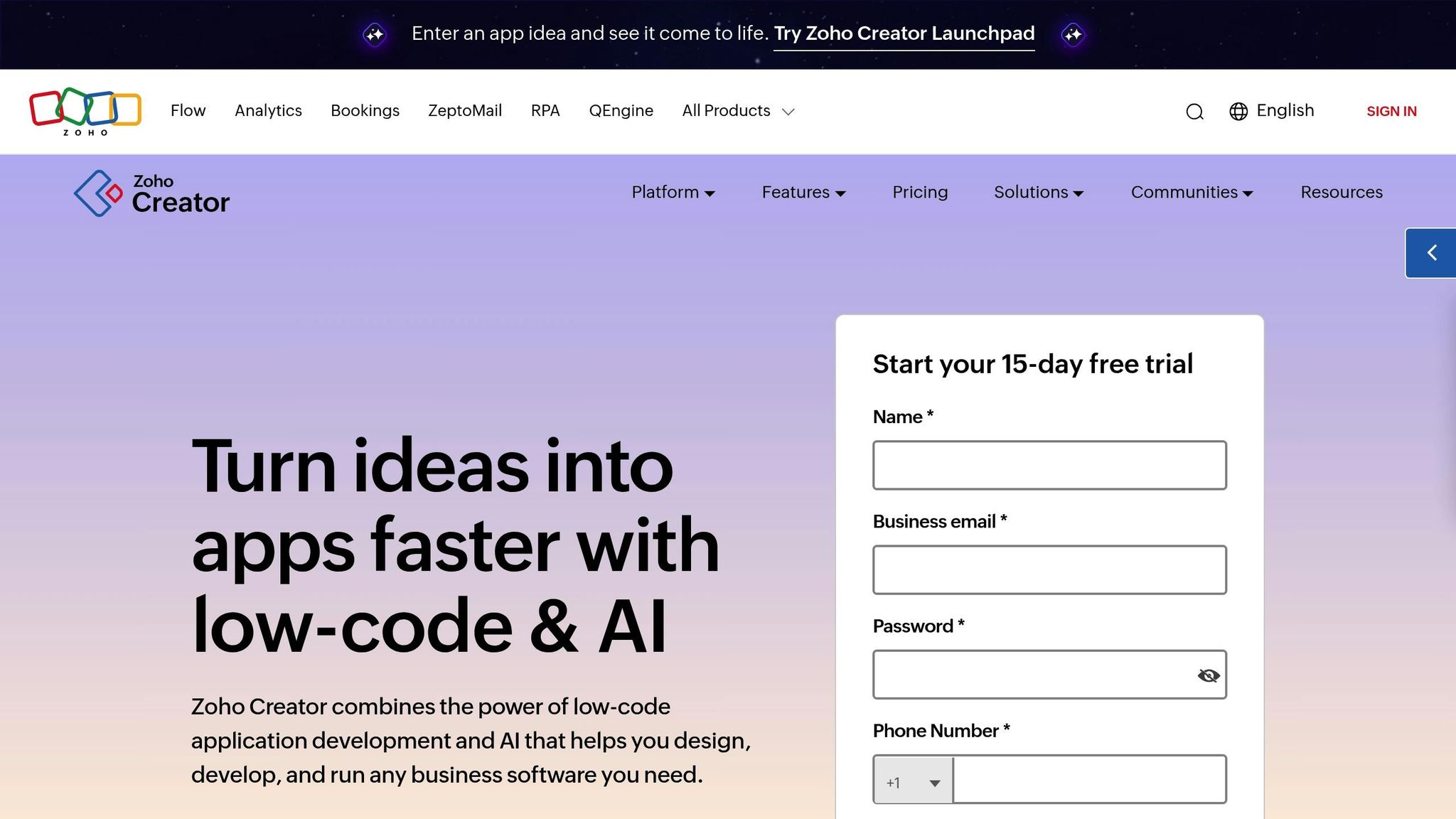
Zoho Creator is a standout tool for building custom applications, even if you don’t have an extensive coding background. Its drag-and-drop interface lets you design forms, reports, and workflows that mirror how your business operates. Focus on customizations that simplify day-to-day tasks.
- Custom fields and modules: These let you capture the exact data your business relies on. For example, real estate companies might track square footage and HOA fees, while manufacturers could monitor batch numbers and quality checks.
- Workflow automation: Automate repetitive tasks to save time and ensure consistency. For instance, you can set up email notifications when deals reach certain stages, assign tasks automatically based on triggers, or update related records when specific conditions are met.
- Custom layouts and page designs: Make sure each department sees the information that matters most to them. Zoho CRM allows you to create role-based layouts, so users only interact with relevant data.
- Mobile responsiveness: For teams on the go, optimizing mobile views is essential. Focus on key fields and ensure layouts are touch-friendly to keep everything running smoothly in the field.
Connecting with the Zoho Ecosystem
The real power of Zoho apps comes from their ability to work together seamlessly. Instead of juggling disconnected systems, you can create workflows that connect multiple business functions under one roof.
- Zoho One integration: With Zoho One, your CRM, accounting tools, project management software, and communication platforms all sync effortlessly. For example, a customer inquiry logged in Zoho Desk can trigger a follow-up task in Zoho CRM, update their support history, and notify the sales team – all without manual input.
- Data synchronization: Ensure that updates in one app reflect across all connected systems. If a customer updates their contact information, that change will automatically apply everywhere, reducing errors and improving customer trust.
- Reporting and analytics: Pulling data from multiple sources gives you a clear, big-picture view. Instead of separate reports for sales, marketing, and customer service, unified dashboards can show how these areas influence each other, helping you make smarter decisions.
- Custom integrations: Connect Zoho with external tools like industry-specific software, accounting platforms, or marketing apps. This creates a central hub for your business data while still leveraging the strengths of specialized tools.
Working with Expert Support
While Zoho offers a lot of flexibility, working with experts can help you tackle complex integrations and maintain long-term efficiency. Here’s how professional support can make a difference:
- Professional implementation: Experts like AorBorC Technologies can tailor Zoho CRM, Zoho Creator, and Zoho One to meet your current needs while planning for future growth. Their solutions ensure your customizations remain effective as your business evolves.
- Ongoing support and maintenance: Business processes change over time. Whether you’re launching new products, entering new markets, or reorganizing your team, having expert support ensures your Zoho setup adapts without starting from scratch.
- Training and knowledge transfer: External consultants can train your internal team to handle daily operations and minor updates independently. This builds your team’s confidence while keeping experts on hand for larger projects.
- Strategic guidance: Experienced partners can spot opportunities for automation, integration, and workflow improvements that might not be immediately obvious. Their fresh perspective often unlocks efficiencies your internal team could overlook.
Customizing Zoho apps requires careful planning and a step-by-step approach. Start by addressing the biggest challenges in your workflow, roll out solutions gradually, and gather feedback from your team. This ensures Zoho apps enhance your operations without adding unnecessary complexity.
Conclusion: Key Takeaways for Effective Zoho App UI Design
Designing an effective Zoho app UI revolves around creating user-friendly experiences that simplify complex business tasks. The key is to deeply understand your users’ workflows and craft layouts that align with their daily operations, rather than imposing rigid structures they must navigate around.
Prioritizing clear navigation and responsive layouts is a must. Combine these with a strong visual hierarchy and consistent branding that meets U.S. standards to create professional, reliable interfaces. Whether your team is working at their desks or on the go with mobile devices, the design should feel seamless and intuitive.
Customization is where Zoho really shines. By tailoring features like custom fields, automated workflows, and integrated tools, you can turn standard apps into high-powered business solutions. However, for more complex customizations, tapping into expert guidance is essential.
Collaborating with experienced partners like AorBorC Technologies can save you time and resources. Their expertise in Zoho CRM customization, Creator app development, and Zoho One implementation ensures your systems are set up for long-term success without the need for costly redesigns.
Remember, great UI design doesn’t stop at launch. Regular team feedback and periodic workflow reviews are critical to keeping your Zoho apps aligned with your business as it evolves. Start by addressing the most pressing challenges in your processes, implement changes gradually, and build on those improvements over time. Always keep your users’ needs at the heart of every design decision.
Use these principles to refine and enhance your Zoho app UI, ensuring it grows with your business.
FAQs
What are the best ways to make my Zoho app UI accessible to everyone, including users with disabilities?
To design a Zoho app UI that’s accessible to everyone, it’s essential to prioritize inclusivity. Start by using fonts that are clear and easy to read, with a minimum size of 16px, and ensure there’s strong contrast between text and background for readability. Add alternative text to images, so users relying on screen readers can understand visual content. Additionally, make sure your app supports keyboard navigation and works seamlessly with screen readers, helping users with visual impairments navigate effortlessly.
For users with motor or cognitive challenges, consider adding features like text magnification and voice navigation to improve usability. Adhering to WCAG guidelines ensures your app is designed to be perceivable, operable, and easy to use for a wide range of users. By making accessibility a priority, you’re not just meeting standards – you’re creating a user experience that works better for everyone.
How can I customize Zoho apps to better match my business workflows?
To tailor Zoho apps for your business workflows, start by leveraging tools like Zoho Creator. This low-code platform helps you automate repetitive tasks and streamline operations. The first step? Clearly map out your workflows and identify any unnecessary steps that could be eliminated to boost efficiency.
You can also improve usability by tweaking UI elements. Adjust things like color schemes, button placements, and navigation paths to better suit your team’s preferences. These customizations make it easier for Zoho apps to align with your specific processes and support your business objectives seamlessly.
How do I ensure brand consistency when designing a Zoho app’s UI?
To keep your Zoho app’s UI aligned with your brand identity, focus on using a consistent color palette, typography, and iconography that represent your brand. Having a clear style guide or design system can help you maintain uniformity across all elements of the interface. This approach ensures every component reflects your brand standards.
It’s also important to routinely test and tweak your design to catch any inconsistencies and address them promptly. A consistent design not only strengthens your brand presence but also improves usability, offering users a smooth and cohesive experience.