Workflow documentation in Zoho CRM streamlines processes, ensures consistency, and simplifies training. It helps teams handle triggers like high-value leads or inactive deals efficiently. Here’s what you need to know:
- Why Document Workflows:
- Ensures consistent responses to triggers.
- Supports compliance with regulations.
- Speeds up onboarding for new team members.
- Key Workflow Terms:
- Workflow Rules: Automate tasks based on conditions.
- Triggers: Define when workflows activate (e.g., new lead over $25,000).
- Actions: Tasks executed when workflows run (e.g., sending an email).
- Modules and Records: Organize and manage data in Zoho CRM.
- Documentation Essentials:
- Workflow name, purpose, and involved modules.
- Trigger conditions and sequence of actions.
- Custom functions and version control for updates.
- U.S. Formatting Standards:
- Dates: MM/DD/YYYY (e.g., 03/15/2024).
- Time: 12-hour clock with AM/PM (e.g., 2:30 PM).
- Currency: USD with commas and dollar signs (e.g., $50,000).
- Testing and Review:
- Test workflows in all scenarios, log results, and assign reviewers.
- Regularly update documentation to reflect changes.
Centralized documentation and clear naming conventions make workflows easier to manage. Tools like Zoho WorkDrive can store and secure documents, while experts like AorBorC Technologies can assist with advanced customization and maintenance.
What to Document for Each Workflow
When documenting workflows, it’s essential to capture all the details that help with understanding, maintenance, and troubleshooting. Each workflow should have a clear record of its purpose, mechanics, and history.
Basic Workflow Information
Start by outlining the core details that define the workflow’s role and functionality.
- Workflow name: Choose a name that is descriptive and follows your organization’s naming rules. For example, "High-Value Lead Assignment – Enterprise Deals Over $50K" provides clarity on its purpose.
- Description and purpose: Clearly explain why the workflow exists and what problem it solves. For instance, "Automatically assigns enterprise leads with budgets exceeding $50,000 to senior sales representatives within 15 minutes of lead creation."
- Module involvement: Specify which Zoho CRM modules the workflow interacts with. For example, a lead nurturing workflow might involve Leads, Contacts, and Accounts, while a deal progression workflow could include Potentials, Tasks, and Activities.
- Trigger conditions: Define the exact circumstances that activate the workflow. For example, "Triggers when Lead Source equals ‘Website Form’ AND Annual Revenue is greater than $100,000 AND Lead Status changes to ‘Qualified.’"
- Actions and sequence: List all actions in the order they execute. Include instant actions like field updates, email notifications, or task creation, as well as scheduled actions with their timing. If conditional logic is involved, document how it determines which actions are executed.
- Associated custom functions: If your workflow uses Deluge scripts, provide detailed information about them. Include the function name, its purpose, input parameters, and expected outputs.
Be sure to use the exact field names as they appear in Zoho CRM. This helps team members quickly locate the correct fields when reviewing or modifying workflows.
Once the basic details are documented, it’s important to keep track of changes, as outlined below.
Version Control and Change History
To ensure your documentation remains accurate, track all changes made to the workflow. Zoho’s version control features can make this process easier when used effectively.
- Version numbering: Use a consistent format like "v1.0", "v1.1", or "v2.0" to distinguish between minor updates and major revisions.
- Author information: Record the name, role, and contact details of the person who created or modified the workflow. This helps future administrators understand the logic or reach out for clarification.
- Last updated date: Always include the date of the most recent update in MM/DD/YYYY format. This ensures teams can assess how current the documentation is and plan reviews accordingly.
- Change notes: Provide clear explanations for each modification. Instead of vague notes like "Updated trigger", write something specific, such as "Expanded trigger to include leads from trade shows in addition to website forms for Q4 event prospects."
Centralize all documentation using approved tools to ensure everyone has access to the latest version and to maintain a clear audit trail.
Standard Formatting Rules
To maintain consistency across your workflow documentation, establish and follow standard formatting guidelines. These should align with U.S. formatting conventions:
- Date formatting: Use MM/DD/YYYY (e.g., "03/15/2025").
- Time specifications: Use the 12-hour format with AM/PM (e.g., "2:30 PM EST").
- Currency values: Display amounts in USD with dollar signs and commas (e.g., "$50,000").
- Number formatting: Use commas for thousand separators and periods for decimals (e.g., "1,500 leads").
- Field name consistency: Always use the exact field names as they appear in Zoho CRM.
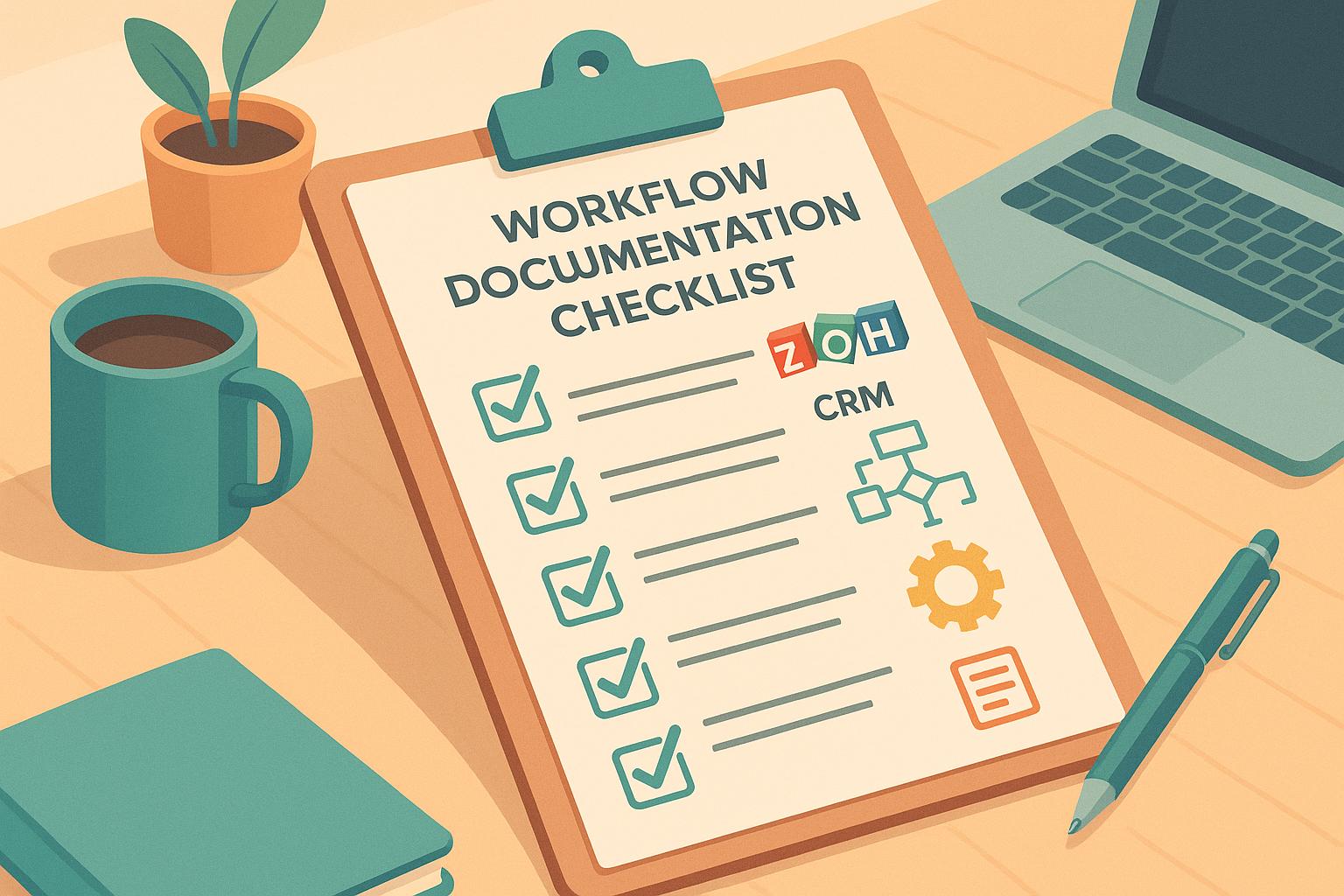
Complete Workflow Documentation Checklist
Taking a structured approach to documenting workflows ensures no detail is overlooked and sets a foundation for consistency. This checklist breaks the process into clear, actionable steps, helping you create accurate records that can be relied upon for future use.
Identify Business Requirements and Scope
Start by defining the business issue your workflow aims to address. Quantify the impact of the current manual process to highlight the workflow’s value. For instance, if sales reps spend 30 minutes daily updating lead statuses manually, calculate how much time this automation could save.
Identify all stakeholders involved, including end users, managers, and even external parties who might receive notifications or updates.
As Zoho CRM Tutorial explains, "The requirements of each company will vary based on their business processes."
This underscores the importance of tailoring your workflow to your organization’s specific needs instead of relying on a one-size-fits-all template.
Set clear success metrics to measure the workflow’s effectiveness. For example, success could mean reducing response times from 2 hours to 15 minutes or ensuring that high-value leads are immediately assigned to senior team members. These metrics will guide both the design and post-implementation evaluation.
Define the workflow’s boundaries by specifying which records, modules, and user roles are affected. Don’t forget to note exceptions or special cases. For example, an inbound lead assignment workflow might exclude leads from existing customers, which may follow a different process.
Once the business needs are outlined, document the technical conditions that will drive the automation.
Document Workflow Triggers and Actions
Carefully outline the triggers and actions in your workflow to ensure clarity and accuracy. This step is particularly important for troubleshooting and replication.
Detail trigger events with precise field names and values as they appear in Zoho CRM. For instance, instead of saying "when deal amount increases", specify something like "when Potential Amount field value changes AND the new value exceeds $25,000.00." Include timing details for triggers, such as "executes every Tuesday at 9:00 AM EST" or "activates 48 hours after Lead Created Date."
Map out if-then logic to clearly show decision points. Document each condition and its outcomes separately. For more complex workflows, consider adding a visual flow diagram to illustrate how different scenarios result in various outcomes.
List workflow actions in sequence. Include details like field updates (with before-and-after values), email templates for notifications, task assignments (with due dates and priorities), and integrations with external systems. Specify timing for scheduled actions, such as "send follow-up email 3 business days after initial contact" or "create a reminder task 1 week before contract expiration."
If your workflow uses custom functions with Deluge scripts, document them thoroughly. Include the full code, input parameters, expected outputs, and error-handling procedures. Note any dependencies on other functions or external APIs that could impact performance.
Test and Review Workflows
Testing ensures your workflow functions correctly across all scenarios, including edge cases. Documenting the testing process provides a valuable reference for future updates or troubleshooting.
Develop test scenarios that cover everyday operations, edge cases, and potential failure points. For each scenario, record the initial record state, the expected trigger, and the desired outcome. Test the workflow with different user roles to confirm permissions are correctly applied and notifications are accurate.
Log test results, including any deviations and how they were resolved. Note performance issues, such as delays in execution or incomplete actions.
Assign reviewers to validate the workflow. Record their names, roles, review dates, and findings. Use a sign-off process to confirm that the workflow meets all business and technical requirements before going live.
Plan for ongoing monitoring by identifying key performance metrics to track post-deployment. Document how to access workflow logs, define what normal performance looks like, and note warning signs of potential problems. Establish clear escalation procedures for handling failures or unexpected outcomes.
Best Practices for Workflow Documentation
Keeping workflow documentation accurate and useful requires consistent effort and adaptable strategies. These practices ensure your documentation stays relevant and easy for your team to access and understand.
Use Clear Naming Conventions
A clear naming system eliminates confusion and makes workflows easier to find and interpret. The name should immediately convey the workflow’s purpose and when it activates. For example, combine the trigger event with the intended action, like "High-Value Lead Assignment – Sales Director" or "Contract Expiration Reminder – 30 Days." This approach provides clarity about what the workflow does and when it’s used.
Apply the same logic to other workflow elements, such as field updates and email templates. For instance:
- Field updates: Use the exact field names as they appear in Zoho CRM.
- Email templates: Include both the template name and recipient type, like "Welcome Email – New Prospects" or "Follow-up Reminder – Existing Customers."
Zoho CRM Tips also suggests naming Deals by combining the Account name with the Product name (e.g., "Account Name – Product Name"). This method helps users quickly connect related elements, making daily tasks more efficient.
To make onboarding and collaboration easier, create a quick-reference naming guide for your team. Once the conventions are set, centralize this guide for easy access.
Store Documentation in One Location
Standardized names make finding documents simpler, but centralizing them ensures consistency and avoids versioning issues. Using Zoho WorkDrive with Zoho CRM is an effective way to manage and store this documentation.
WorkDrive acts as a central hub for all your workflow resources. You can attach workflow documentation directly to CRM modules like Leads, Contacts, and Deals. This integration ensures your team can access the information they need without jumping between tools.
"At WorkDrive, our vision is simple: to be the central content repository of every Zoho app you use."
- Zoho WorkDrive
Organize your WorkDrive with Team Folders, separating active workflows, archived versions, and templates into distinct folders. This setup keeps everything organized while maintaining access to historical records.
WorkDrive also allows you to store related materials – like email templates, troubleshooting guides, and training documents – alongside your main workflow files. This reduces the time spent searching for additional resources.
Zoho’s security features further protect your documentation. With enterprise-grade encryption (TLS 1.2/1.3 for data in transit and AES-256 for data at rest) and real-time backups, your files are safeguarded. For particularly sensitive workflows, Zoho CRM’s vaults feature can restrict access to authorized users only.
Role-based access controls add another layer of security. For example, sales reps might only see lead assignment workflows, while managers can view escalation processes.
Review and Update Documentation Regularly
As your business evolves, so do your workflows – making regular reviews essential. Schedule reviews to align with your business planning cycles, whether quarterly or semi-annually, to keep documentation accurate.
Assign specific team members to manage different workflow categories. For instance:
- A team member handling lead management should review lead-related workflows.
- A sales manager might oversee deal management workflows.
This approach ensures that those most familiar with a process are responsible for its review. During these reviews:
- Check if workflows perform as expected.
- Update trigger conditions, email templates, or task assignments as needed.
- Record any discrepancies and their resolutions.
Update documentation before making changes to live workflows. This ensures that what’s documented matches what’s in use. You can also add a change log to each workflow document, noting the modification date, who made the change, why it was made, and a brief summary of the update.
Automate reminders for these reviews using Zoho CRM’s task management features. Set recurring tasks with direct links to the relevant WorkDrive folders to make the process seamless.
Finally, monitor workflow performance metrics. If success rates drop or execution times increase, it’s a sign the documentation – and possibly the workflow itself – needs adjustments. Regular updates ensure your workflows stay efficient and aligned with your business goals.
sbb-itb-058cafb
How AorBorC Technologies Can Help with Workflow Documentation

Creating effective workflow documentation, especially for intricate Zoho CRM customizations, requires a mix of technical know-how and a deep understanding of business operations. AorBorC Technologies bridges this gap by aligning workflows with proven strategies, helping businesses achieve greater consistency and efficiency.
AorBorC Technologies Services
AorBorC Technologies simplifies the documentation process with over 12 years of Zoho expertise. Certified since 2013, their team of skilled developers and designers specializes in low-code solutions tailored for Zoho apps.
Their services go far beyond basic process mapping. They provide Deluge script training and advanced Zoho training, equipping your team with the technical skills to understand both the purpose and mechanics of workflows. This is especially helpful for documenting complex automation sequences or troubleshooting issues.
For businesses in the U.S., AorBorC Technologies offers localized support through their U.S. contact number (+1 872-267-2672), ensuring smooth communication during American business hours.
Their expertise in building, customizing, and integrating Zoho apps ensures that they can document workflows that connect Zoho CRM with your existing systems. Whether it’s your website, ERP system, or other digital tools, they ensure every integration is clearly documented.
Tailored Documentation for Your Business
AorBorC Technologies takes a personalized approach to workflow documentation, ensuring it aligns with your specific business needs and goals. Instead of relying on generic templates, they craft documentation tailored to your industry and operational processes.
Their presence on the Zoho Marketplace highlights their ability to create custom applications designed for a variety of industries, each with unique documentation requirements.
The company follows a five-step implementation process to ensure comprehensive documentation:
- Consultation: They start by understanding your business objectives and documentation needs.
- Planning: A custom digital strategy is developed, including detailed documentation requirements.
- Development: Workflow implementation is accompanied by real-time documentation creation.
- Testing: A rigorous review ensures the documentation accurately reflects the workflows.
- Ongoing Support: They keep your documentation up-to-date as your workflows evolve.
For businesses looking to improve their processes, AorBorC Technologies emphasizes services like "Workflow Automation" and "Streamline Operations." They document not only your current workflows but also identify areas for improvement, detailing optimized processes.
They also specialize in documenting cross-platform workflows. For example, if a lead enters through your website and triggers actions in both Zoho CRM and your ERP system, AorBorC Technologies ensures the entire workflow is captured and documented.
Summary and Key Points
Documented workflows transform disorganized processes into consistent, efficient systems that support business growth. By creating clear documentation, teams can shift their focus from constant troubleshooting to driving revenue. This approach strengthens the structured processes outlined earlier.
Workflow Documentation Checklist Review
Start by identifying the business requirements and defining the scope of each workflow. Clearly understanding what each workflow is meant to achieve – and setting measurable goals – keeps the documentation focused and aligned with your objectives.
Next, document the triggers and actions that form the framework of your workflows. This includes every condition that initiates a workflow, each decision point, and all resulting actions. Whether it’s updating fields, sending email notifications, assigning tasks, or integrating with external systems, capturing these details accurately ensures a reliable operational guide.
The testing and review phase is essential to confirm that the documentation reflects how the workflow operates in practice. Regular reviews help identify inconsistencies, highlight areas for improvement, and keep the documentation current.
Centralizing your workflow documentation – whether through a shared drive, wiki, or specialized tool – ensures everyone has access to the latest version. This eliminates confusion and prevents scattered records from disrupting efficiency.
Following these practices creates a strong foundation for improving workflows further, especially with the right professional support.
Benefits of Professional Support
Expanding on these checklist practices, partnering with Zoho CRM experts like AorBorC Technologies can take your workflow documentation to the next level. Their expertise is especially helpful in managing complex integrations between Zoho CRM and other systems, where multiple decision points and intricate data transformations require deep technical knowledge.
Working with professionals also promotes knowledge sharing, enabling your team to maintain and update documentation independently in the future. This approach ensures your documentation evolves with your business while building internal expertise. Combining specialized support with the checklist practices above adds lasting value and strengthens your workflows over time.
FAQs
What are the advantages of using Zoho WorkDrive to store workflow documentation in Zoho CRM?
Zoho WorkDrive offers a streamlined storage solution tailored for managing workflow documentation right within Zoho CRM. It promotes teamwork by allowing real-time file sharing and editing, helping your team stay on the same page and work more efficiently.
With its secure, compliance-focused storage, Zoho WorkDrive simplifies document management by cutting down retrieval times and integrating seamlessly with Zoho CRM. This means you can easily access, update, and organize important files directly within the CRM, boosting productivity and saving valuable time.
How does AorBorC Technologies help with customizing and documenting workflows in Zoho CRM?
AorBorC Technologies focuses on making Zoho CRM workflows easier to manage and more efficient. Their team tailors workflows to fit the unique needs of each business, automating tasks like email notifications or field updates triggered by specific actions.
They also create detailed documentation for every workflow, helping businesses manage, expand, and maintain their processes smoothly over time. With their help, you can simplify operations and improve productivity within Zoho CRM.
How can I keep my Zoho CRM workflow documentation accurate and up-to-date?
Keeping your workflow documentation in Zoho CRM accurate and current is essential for smooth operations. Here are a few tips to help you stay on top of it:
- Set up regular reviews: Plan monthly or quarterly audits to spot outdated or incorrect details and update them as needed. This helps prevent small issues from growing into bigger problems.
- Get your team involved: Encourage team members to join in ongoing training sessions and follow clear procedures for updating documentation. This promotes consistency and keeps everyone on the same page.
- Check workflows frequently: Make sure your workflows match your current business processes by reviewing them regularly as your operations evolve.
By making these steps part of your routine, you’ll keep your workflow documentation dependable and ensure your CRM runs efficiently.