
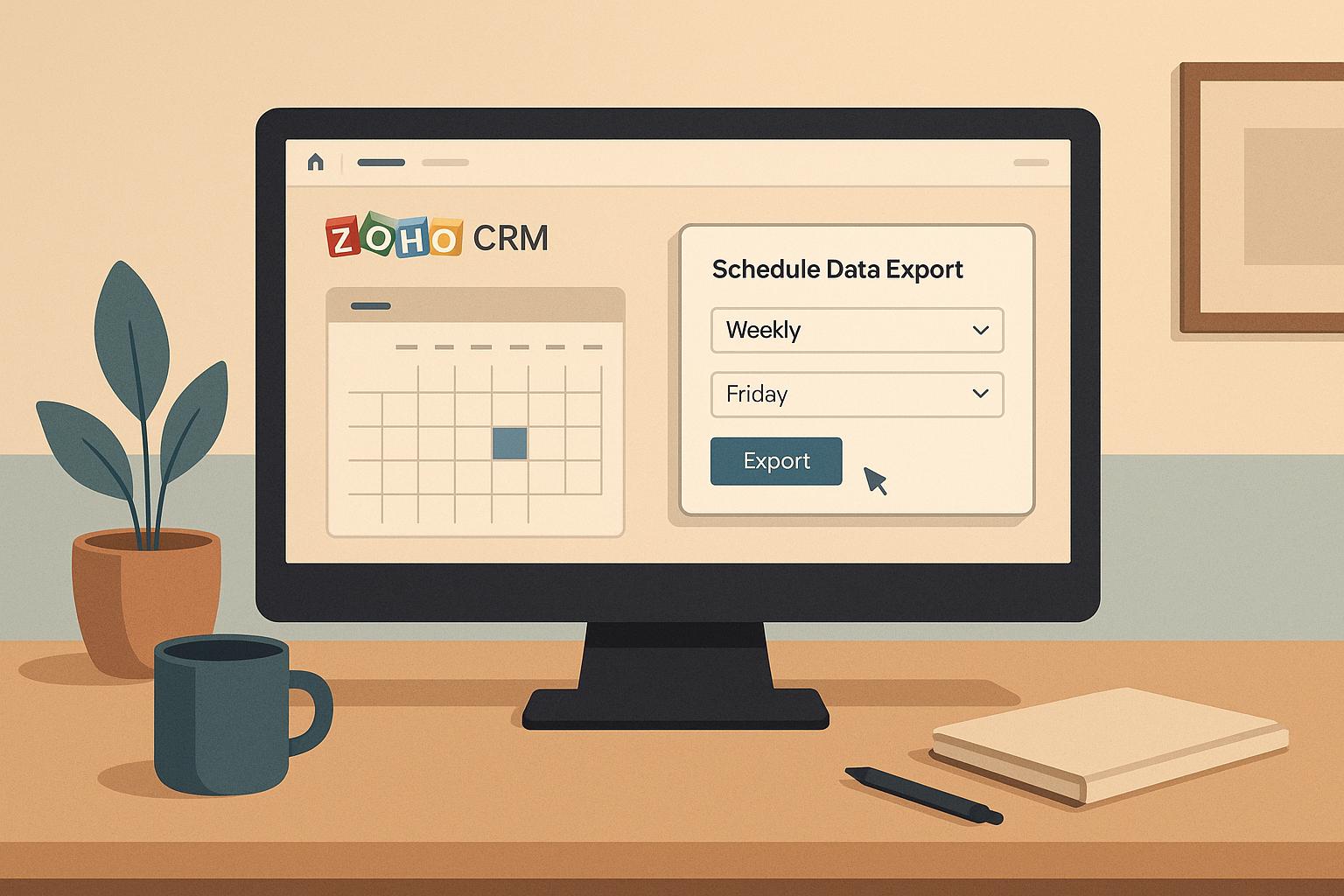
Efficiently exporting data in Zoho CRM ensures your records are always backed up, accessible for compliance, and ready for analytics. Zoho CRM offers two methods for data exports: manual exports for one-time needs and automated scheduling for recurring tasks. Automated exports save time, reduce manual effort, and keep your data consistently updated.
Here’s what you need to know:
- Export Options: Choose between manual exports (for urgent, ad-hoc tasks) or automated scheduling (for ongoing needs like backups or reports).
- File Formats: Export data in CSV or XLS formats, with large datasets compressed into ZIP files.
- Limits: Export up to 200,000 records per module, with specific limits for reports and views.
- Setup: Use the Data Administration section in Zoho CRM to configure exports. Permissions like "Schedule Export" and "Export Data" are required.
- Advanced Scheduling: Use Zoho CRM’s scheduler or Zoho DataPrep for complex workflows.
- Best Practices: Test settings, monitor performance, secure files, and organize exports for audits.
Automating exports minimizes errors and ensures your data is always ready for analysis, compliance, or integration with other tools. If you encounter challenges, breaking large datasets into smaller batches or seeking expert help from certified providers like AorBorC Technologies can simplify the process.
Data Export Options in Zoho CRM
Zoho CRM offers two main ways to extract your customer data: manual exports for quick, one-time needs and automated scheduling for ongoing data management. The best choice depends on your specific requirements. Here’s a closer look at how these two options compare.
Manual vs. Automated Data Exports
Manual exports are ideal for urgent requests or customized reports, giving you full control over the timing and content. On the other hand, automated exports are perfect for regular tasks like backups, compliance reporting, or feeding data into dashboards. These automated processes save time and ensure consistency.
| Export Method | Best Use Cases | Advantages | Limitations |
|---|---|---|---|
| Manual | One-time reports, urgent requests, custom analysis | Full control over timing and content, immediate availability | Requires manual effort, time-consuming for frequent use |
| Automated | Scheduled backups, compliance reporting, dashboard updates | Consistent delivery, reduces manual tasks, reliable scheduling | Less flexible for last-minute changes, requires initial setup time |
Smaller teams often prefer manual exports for their flexibility, while larger organizations benefit from the efficiency of automated exports, which reduce the workload for individual team members.
File Formats and Export Limits
Zoho CRM supports two primary file formats for data exports: CSV and XLS. CSV files work well for importing data into other systems, while XLS files are better for detailed, formatted analysis.
For large datasets, Zoho CRM compresses CSV files into ZIP archives to make downloads faster and easier to manage. This is especially helpful when dealing with significant amounts of customer data.
The platform has specific limits to ensure smooth performance:
- You can export up to 200,000 records from a single module at once, which meets most business needs.
- For reports, you can export 2,000 records per batch, but the first page of a CSV report can include up to 20,000 records.
Once your export is ready, Zoho CRM keeps the files available for 7 days. It’s important to download them promptly, as this time limit helps maintain system efficiency.
If your data exceeds the 200,000-record limit, breaking the export into smaller batches is a practical solution. Not only does this work within the system’s constraints, but it also makes the files easier to handle in spreadsheet tools or other analysis platforms.
How to Set Up Scheduled Data Exports
Setting up scheduled data exports in Zoho CRM can simplify your data management process by automating recurring exports. Here’s how you can get started.
Finding Export and Data Backup Settings
To access the export settings, click the Setup gear icon to open the configuration menu. From there, navigate to the Data Administration section. This area provides tools for managing imports, exports, and backups.
Under Data Administration, you’ll find two primary options: Export and Data Backup. Use Export for standard data exports where you can select specific fields or views. For larger datasets or recurring exports, choose Data Backup, which allows you to export complete datasets regularly. Once you select the appropriate option, click Start an Export to open the scheduling wizard.
Setting Export Preferences
When setting up an export, start by selecting the module you want to export data from (e.g., Leads, Contacts, Deals). Next, choose a custom view: Standard, Custom, or Criteria-based. Each view determines how the data is filtered for export.
For field selection, you have three options:
- Fields from Custom View: Exports only the fields visible in your selected view, keeping the file size smaller.
- All Fields: Exports every field in the module, creating a complete dataset, though the file size may be larger.
- Choose Fields: Lets you manually pick specific fields, including those from related lookup modules. This option offers the most control. When manually selecting fields, include identifiers like Record ID or Email Address to ensure data integrity when importing into other systems.
User Permissions for Export Scheduling
To schedule exports, users need the Schedule Export and Export Data permissions. Administrators typically have these permissions by default, but for other users, you can verify or assign them by navigating to Setup > Users and Control > Security Control > Profiles.
If a user needs to manage exports scheduled by others, they must also have the Manage Scheduled Exports permission. This allows them to view, edit, or delete exports created by other team members. Administrators can see all exports across the organization, while non-admin users can only view the exports they have initiated.
Make sure to enable the necessary permissions under Data Administration Permissions to streamline the process.
Next, explore how to create recurring data exports using Zoho CRM’s scheduling tools.
Creating Recurring Data Exports
Setting up recurring exports ensures your data is consistently backed up or shared with other systems without manual intervention. In Zoho CRM, this process is managed through Schedules, which rely on custom Deluge functions to automate and format your exports.
Using Zoho CRM’s Built-In Scheduler
To create a recurring export schedule, go to Setup > Automation > Schedules and click Create your First Schedule. Give the schedule a clear, descriptive name for easy identification.
Next, either select or create a custom Deluge function. This function determines what CRM data is exported and how it is formatted – whether as CSV, JSON, or XML. It also specifies where the export will be sent.
Set the start time for your schedule during off-peak hours, such as between 2:00 AM and 4:00 AM. This minimizes the impact on system performance.
Choose a schedule frequency that fits your needs: Once, Daily, Weekly, Monthly, or Yearly. For more precise control, use the Custom option. For instance, you might schedule quarterly reports to run on the 15th of March, June, September, and December.
Lastly, define when the schedule should stop. Options include running indefinitely, ending after a set number of executions, or stopping on a specific date. This prevents temporary exports from unnecessarily consuming resources over time.
For more advanced export requirements, you can enhance your setup using Zoho DataPrep.
Advanced Scheduling with Zoho DataPrep
If your export needs are more complex, Zoho DataPrep allows you to transform and consolidate CRM data before exporting. It’s a powerful tool for handling intricate data scenarios.
Once your scheduler is set up, follow best practices to ensure your exports remain accurate and reliable.
Data Automation Best Practices
Automating data exports requires careful planning to maintain accuracy and integrity. Here are some tips to keep your exports running smoothly:
- Test Thoroughly: Run scheduled exports with varied data scenarios to ensure your Deluge functions handle edge cases like empty fields, special characters, or large datasets.
- Monitor Performance: Regularly review logs and set up notifications to flag issues like export failures or unusual file sizes.
- Track and Document: Keep detailed records of what data is exported, when, and to whom. This is especially important for compliance and audits.
- Version Control: Document any changes to your Deluge functions and maintain backup copies. Always test updates in a sandbox environment before applying them to live operations.
- Prioritize Security: Use encrypted connections for file transfers, enforce access controls at export destinations, and review permissions regularly to ensure only authorized users can access or modify scheduled exports.
sbb-itb-058cafb
Managing Your Exported Data
Once your scheduled exports are running without a hitch, the next step is making sure the exported files are managed in a way that keeps them secure, organized, and easy to use. Proper management ensures your data remains accessible and fits seamlessly into your workflows.
Downloading Your Exported Files
Zoho CRM saves your completed exports under the Export History section, found via Setup > Data Administration > Export. This section provides a chronological list of all exports – both manual and scheduled.
Each entry includes details like the file name, export timestamp, file size, and status. A green checkmark indicates a successful export, while an error icon highlights failed attempts, along with an explanation of what went wrong. To save a completed export, simply click the Download button next to it.
Download your files promptly after they’re generated. Zoho CRM typically retains export files for 30 days before deleting them to free up storage space. Setting reminders or notifications can help ensure you don’t lose track of critical exports.
Once downloaded, focus on securing and integrating the files into your workflows.
Sharing and Using Exported Data
Exported data becomes most useful when it’s shared and integrated effectively within your organization. Setting up secure and efficient processes for managing this data is key.
For internal teams, create shared folders categorized by export type and date. For instance, you might have separate folders for "Monthly Sales Reports", "Customer Data Backups", or "Marketing Campaign Exports." This keeps everything organized and easy to locate.
When handling sensitive data, use password-protected or encrypted files. A common practice is to upload files to a secure location and share access credentials through a separate communication channel for added security.
If you rely on analytics and reporting tools, many of them – like Tableau, Power BI, or Google Analytics – can directly process Zoho CRM export files in CSV format. Consider automating workflows so that exported files are uploaded to specific folders that these tools monitor for new data.
For compliance purposes, maintain a detailed log that tracks who accessed the exported data and when. This audit trail is crucial for industries like healthcare, finance, or legal services, where strict data governance is required.
Organizing Exports for Audits
After your exports have been shared and integrated, keeping an organized archive is essential for both compliance and future audits. Start by adopting a clear naming convention and folder structure.
Use descriptive, date-specific file names. Instead of generic names like "export_1.csv", opt for something like "CRM_Leads_Export_2025-09-17_Monthly.csv" or "Customer_Data_Backup_Q3_2025.csv." This makes it easier to locate specific files, even years later.
Maintain a master log for each export, including details like the date, file name, record count, and storage location. Archive older files systematically. A tiered storage approach works well: keep the most recent three months of exports in easily accessible folders, move older files to an archive, and store anything over two years old in long-term storage or cloud-based solutions.
For regulatory compliance, document the purpose of each export. Specify whether the data was used for reporting, analysis, backups, or sharing with external parties. Include retention policies and deletion schedules in your documentation. This information is invaluable during audits or when responding to data subject requests under privacy laws.
If you frequently modify export parameters or add new fields, consider implementing version control. Create separate folders for each version of recurring exports to track changes over time. This approach ensures consistency when comparing historical data.
Finally, schedule regular cleanups to avoid storage issues and reduce security risks. Every quarter, review and delete unnecessary exports, update access permissions, and confirm that archived files remain readable and intact. This keeps your data management streamlined and secure.
Fixing Common Export Problems
Even with careful preparation, export processes can sometimes run into issues. Recognizing these problems and knowing how to address them is key to keeping your workflows smooth. Building on earlier setup and management strategies, let’s tackle some common export challenges and their solutions.
Solving Export Errors and Limits
Zoho CRM has strict export limits that can lead to errors if exceeded. For instance, the platform caps exports at 200,000 records per module in total, but each individual export is limited to 3,000 records at a time. Trying to export beyond these thresholds will typically result in an error that halts the process.
Another common issue involves incompatible fields, which can lead to incomplete or messy CSV files. To avoid these headaches, always test your export settings with a small sample of data before running a full export or scheduling automated ones.
Exporting Large Datasets Efficiently
Handling large datasets within Zoho CRM’s limitations requires breaking them into smaller, manageable chunks. One effective approach is to use date-based filters, exporting records from specific time periods to stay within the limits. Exporting data by module – one at a time – is another practical option.
Keep in mind that Zoho CRM compresses large exports into ZIP files. Make sure to download these files promptly to avoid delays or potential issues.
If these methods don’t resolve your export challenges, it might be time to bring in an expert. Sometimes, the complexity of large datasets requires more advanced solutions.
Getting Expert Help from AorBorC Technologies

When Zoho CRM’s built-in tools aren’t enough, expert assistance can make all the difference. AorBorC Technologies, led by Ruben Kannan, specializes in Zoho CRM customization and offers tailored solutions to streamline your export processes.
Their team can help you design workflows that are reliable and scalable, ensuring your exports keep pace with your growing data needs. Whether it’s troubleshooting errors or optimizing processes, AorBorC Technologies provides the support you need to handle even the trickiest export scenarios with ease.
Conclusion
Automating exports in Zoho CRM simplifies data management by ensuring backups are never missed and records stay updated for analysis, reporting, and compliance.
This guide walked through the steps to create a reliable data management system. By setting up and scheduling automated exports, you can maintain consistent data integrity. Whether you use Zoho CRM’s built-in scheduler for basic tasks or Zoho DataPrep for more complex workflows, the key is to choose the right approach for your needs. Additionally, managing user permissions, keeping files organized, and regularly testing your export settings are crucial for smooth, dependable data processes.
For larger datasets, consider breaking exports into smaller, date-based batches. Always download compressed ZIP files promptly and maintain a clear audit trail to stay organized.
If your business has advanced requirements, professional assistance can make a big difference. AorBorC Technologies, a Zoho Certified Solution Provider, specializes in handling complex data export needs. Their team offers tailored solutions that fit your specific business operations, ensuring smooth integration and peak performance.
"Every solution is designed with your unique needs and goals in mind." – AorBorC Technologies
"We focus on measurable results, helping you track success and optimize for growth." – AorBorC Technologies
With expert guidance from AorBorC Technologies, even the most intricate export challenges can be addressed efficiently, helping your business thrive.
FAQs
What are the advantages of automating data exports in Zoho CRM instead of doing them manually?
Automating data exports in Zoho CRM comes with several advantages that can make a real difference in your daily operations. For starters, it removes the possibility of human error, ensuring that exports are accurate and always completed on schedule. This means you no longer have to rely on manual efforts, freeing up time and resources for other important tasks.
Another big plus is that automated exports ensure your data is always current. Having up-to-date information is crucial for maintaining seamless workflows and making smart, timely decisions. Unlike manual methods, automation minimizes the risk of delays or missed exports, giving you a smoother, more reliable process and greater confidence in your business operations.
How can I keep my exported data from Zoho CRM secure and compliant with U.S. data protection regulations?
To ensure your exported data from Zoho CRM stays secure and aligns with U.S. data protection regulations, it’s important to adopt robust security practices. Start by using encryption to safeguard data both when stored and during transmission. Pair this with strong password policies and multi-factor authentication to block unauthorized access.
You should also implement role-based access controls (RBAC) to restrict data access according to user roles, ensuring only the right people have access to sensitive information. Conduct regular security audits to spot and fix vulnerabilities before they become bigger issues. For compliance, align your practices with relevant U.S. regulations like HIPAA for healthcare, the CCPA for California residents, or even GDPR if applicable. Additionally, maintaining security certifications such as ISO 27001 or SOC 2 can help demonstrate your commitment to data protection.
By integrating these strategies, you can protect your data and stay compliant with key regulations.
What can I do if I face issues exporting large datasets from Zoho CRM?
If you’re having trouble exporting large datasets from Zoho CRM, a good first step is to divide the data into smaller chunks. Zoho CRM caps exports at 200,000 records per batch, so splitting the dataset can help you steer clear of errors.
For even larger datasets, you have the option to request a full data backup through the Data Administration Tools. This feature allows Zoho to send your entire dataset directly to your email, making it easier to access. It’s also a good idea to ensure your data is well-organized and free of invalid entries to avoid any processing hiccups. Choosing file formats like CSV can make the process smoother, as they tend to be more compatible and better suited for handling large files.